How to Run AI Models Locally in 2026
GLM-5.3-Flash and 512GB unified-memory hardware make local AI practical in 2026. Here's the setup, the real cost math, and when renting still wins.

How do you run AI models locally in 2026?
Running an AI model locally in 2026 means downloading an open-weight model like GLM-5.3-Flash, quantizing it to fit your machine's memory, and serving it through a tool like Ollama, LM Studio, or vLLM. No API key, no metered bill, no data leaving your building. The catch: it only pays off once your usage crosses a specific threshold, and finding that threshold is the actual work.
TL;DR
- Running a model locally means downloading an open-weight model, quantizing it, and serving it, which gives you no metered bill and no data leaving your building.
- AI-native application spend rose 108% year over year, and that invoice shock is what pushes most teams to reconsider local models over metered APIs.
- Unified memory turned a server-rack problem into a desktop one, so a 512GB Mac Studio can hold the 320-billion-parameter GLM-5.3-Flash at either quantization level.
- Local deployment breaks even against proprietary APIs like GPT-4.1 at around 2 to 3 million tokens a day, while renting wins clearly at light usage.
- Organizations with high levels of shadow AI incur an average of $670,000 more per data breach, which makes sanctioned local models a governance fix as well as a cost one.
Why did the API bill make local AI worth a second look?
The trigger for most teams isn't ideology. It's the invoice.
AI-native application spend rose 108% year over year across organizations tracked in Zylo's 2026 SaaS Management Index, and 393% at companies with more than 10,000 employees. That index covers more than 40 million licenses and $75 billion in spend, and it puts median SaaS spend per employee at $9,455 a year. Seventy-eight percent of IT leaders reported unexpected charges tied to consumption-based or AI pricing in the past year. Consumption pricing is efficient for the vendor and unpredictable for the buyer. That's the setup that makes owning the model, not renting the endpoint, worth a second look.
What changed in 2026 to make models good enough to own?
For years, the honest answer to "should I run this locally" was no. Open models lagged the frontier by too much to bother. That gap has mostly closed.
GLM-5.3-Flash, released by Z.ai under an MIT license with full weights posted on Hugging Face, is a mixture-of-experts model with 320 billion total parameters but only 18 billion active per token. It approaches Claude Opus 4.8 on coding and agentic benchmarks while running at roughly one-tenth the price of its predecessor. Z.ai's own hosted API prices it at about $0.15 per million input tokens and $0.50 per million output tokens, already remarkably cheap. That's worth sitting with: even the rented version of this model is inexpensive. The case for running it yourself isn't about beating that price per token. It's about ownership, privacy, and not being one pricing-page update away from a different bill.
What changed in 2026 to make hardware able to hold them?
The other half of the shift is memory, not compute.
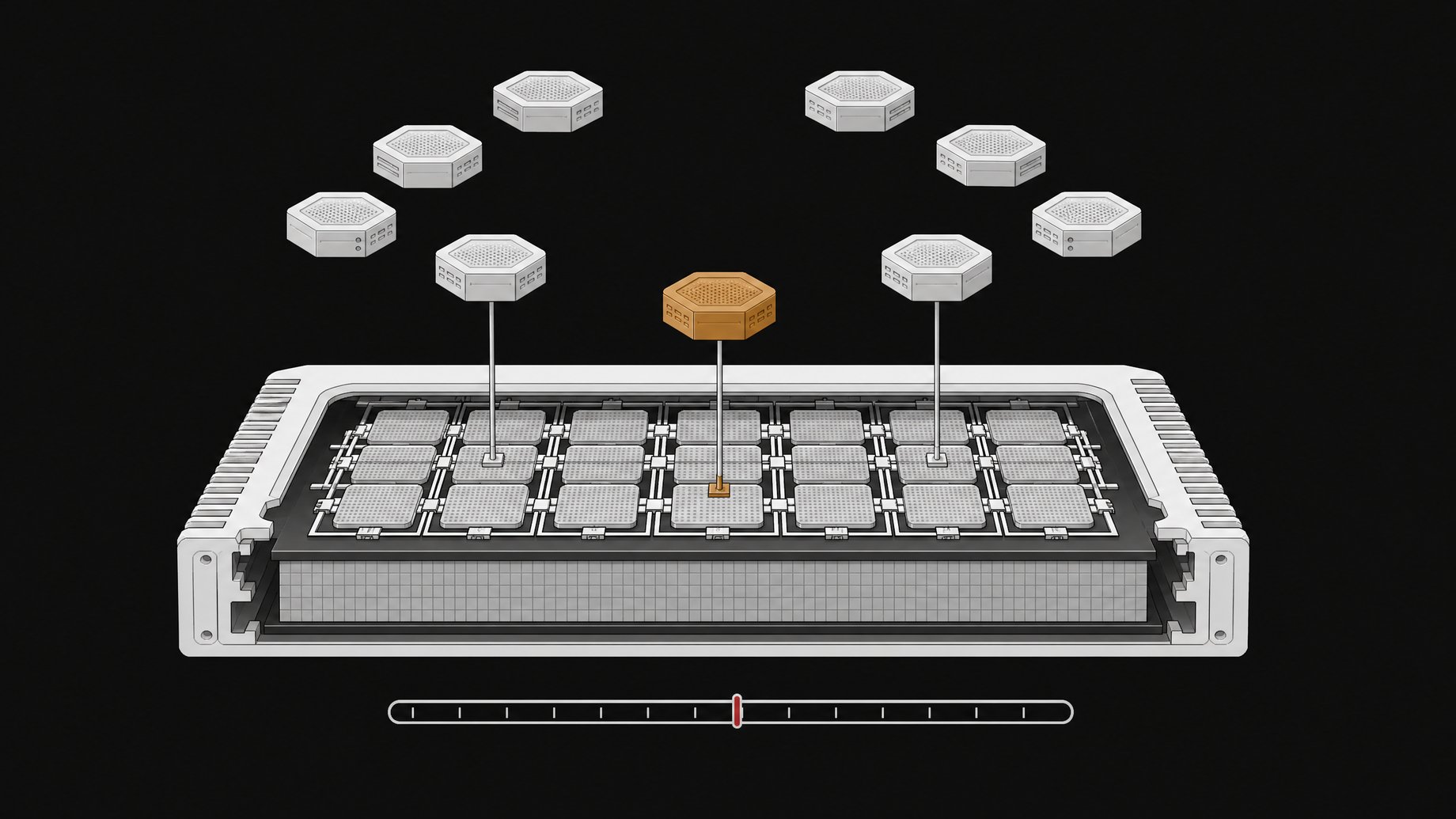
Apple's Mac Studio with M5 Ultra, announced in August 2026, scales to 512GB of unified memory with 1.2TB/s of bandwidth, and Apple markets it specifically for running local models with hundreds of billions of parameters on a desktop. That matters because of how mixture-of-experts models work. Total parameters determine how much memory you need to load the model. Active parameters determine how much compute each token actually costs. GLM-5.3-Flash needs memory sized for a 320-billion-parameter model, but at inference time it behaves like an 18-billion-parameter model: fast and cheap to run per token.
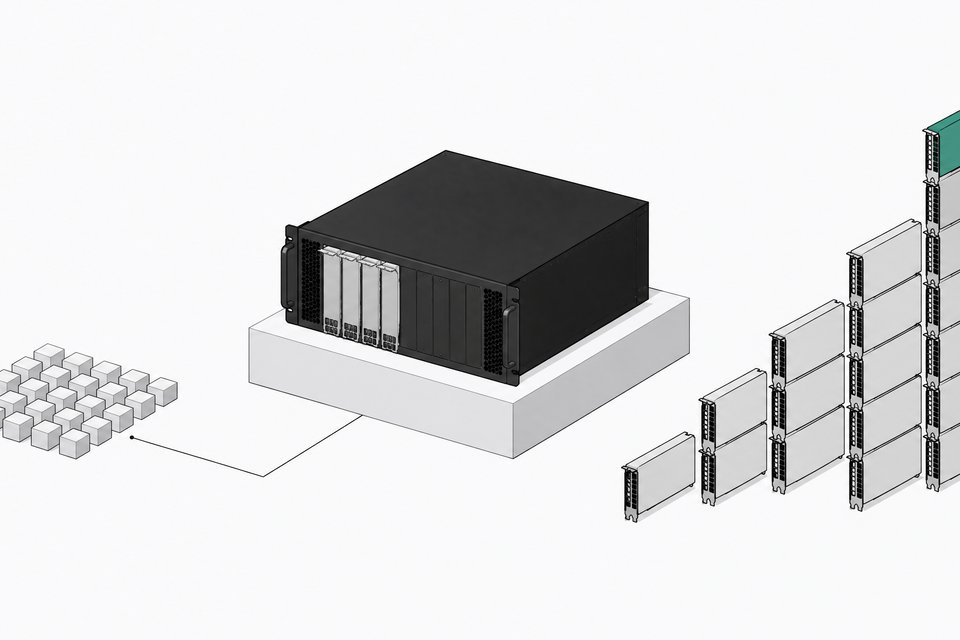
At 4-bit quantization, the full model needs roughly 180GB of memory. Unsloth's 2-bit and 3-bit dynamic quants push that closer to 100GB. A 512GB Mac Studio holds either comfortably, with room left over for the model's context window. That's the hardware story in one sentence: unified memory turned a server-rack problem into a desktop one.
How do you actually run GLM-5.3-Flash locally?
The mechanics are more approachable than the parameter count suggests.
- Pick your quantization. A 4-bit quant gets you close to full quality at about 180GB. Dynamic 2-bit and 3-bit quants trade a little accuracy for a smaller footprint, near 100GB, which opens the door to more machines.
- Match hardware to that footprint. A 512GB Mac Studio with M5 Ultra handles either quant with headroom. Multi-GPU Linux boxes and DGX Spark-class machines work too, at higher power draw and cost. If you're starting smaller, a CPU-only build with 128GB of RAM can run the model, just slower.
- Choose a serving stack. Ollama is the fastest path to a working local API for one developer. vLLM and SGLang are built for production throughput and multi-user load, and the GLM-5.3-Flash model page lists both among its supported inference frameworks. LM Studio gives you a polished desktop GUI if you'd rather not touch a terminal. Jan is the fully open-source option if extensibility matters more than polish.
- Pull the weights and serve. Download the quantized model from Hugging Face, point your serving tool at it, and expose an OpenAI-compatible endpoint. Most existing tooling that talks to a cloud API can be repointed at localhost with a one-line config change.
- Test latency and context before you commit. Local inference typically returns a first token in 50 to 200 milliseconds, against 200 to 800 milliseconds for a round trip to a cloud API. Confirm your quant handles the context length you actually need before you build workflows around it.
| Ease of setup | Production throughput | Desktop GUI | Fully open-source | |
|---|---|---|---|---|
| RecommendedOllamaa single developer's local API | High | Low | No | No |
| vLLM / SGLangproduction throughput and multi-user load | Low | High | No | Yes |
| LM Studioa polished GUI without touching a terminal | High | Low | Yes | No |
| Janopen-source extensibility | Medium | Low | Yes | Yes |
For a walkthrough that goes deeper on the CPU-only path specifically, the step-by-step commands for running GLM-5.3-Flash on a 128GB RAM machine are worth reading before you buy anything.
What does local AI actually cost versus API calls?
This is where the ownership argument either holds up or falls apart, and the answer depends entirely on volume.
Independent total-cost-of-ownership modeling breaks it into tiers. At light usage, around 500,000 tokens a day, a consumer local build runs about $6,457 over 12 months, an effective $35.37 per million tokens. Hosted APIs at that volume cost $360 to $1,800 over the same period. Renting wins, clearly, at light usage. At heavy usage, 50 million tokens a day on enterprise-grade hardware running vLLM, the effective cost drops to $1.69 to $7.15 per million tokens over 36 months, beating OpenAI's roughly $6.90 and Anthropic's roughly $9.86 per million. The crossover against proprietary APIs like GPT-4.1 sits around 2 to 3 million tokens a day at a 12-month horizon. Against cheaper hosted open-weight APIs, local doesn't break even until 15 to 20 million tokens a day.
A simpler model tells the same story from a different angle. An RTX 4090 running an 8B model at Q4 costs about $59 a month once you include amortized hardware and electricity, and it never beats a $6-a-month budget API tier. It reliably beats flagship-tier pricing around $150 a month, with a break-even point near 20 months. For the full arithmetic behind that number, the break-even math on local models versus API pricing walks through it line by line. The pattern across both models is consistent: local ownership rewards sustained, predictable, heavy usage. It punishes light or spiky workloads.
When does renting still win?
Local isn't a universal replacement, and treating it as one leads to bad purchasing decisions.
- Low or unpredictable volume. If your usage is under a few million tokens a day and irregular, a metered API is cheaper and simpler, full stop.
- Frontier-only quality needs. If your workload genuinely requires the top proprietary model and no open-weight substitute clears the bar, you're renting regardless of the math.
- No one to run it. Local deployment has a labor cost the TCO models bake in but that's easy to underestimate in practice. Someone has to manage quantization, updates, and uptime.
The decision isn't "local versus cloud" as a permanent stance. It's a spreadsheet question you should rerun every time your volume shifts meaningfully.
Can local models be a governance answer, not just a cost one?
There's a second reason this matters beyond the invoice, and it's arguably more urgent.
Seventy-eight percent of AI users already bring their own AI tools to work, sanctioned or not. Organizations with high levels of that kind of shadow AI incur an average of $670,000 more per data breach, and 63% of breached organizations had no AI governance policy in place at all. That's not a cost problem. It's a control problem, and it's the same gap that pushes employees toward unsanctioned tools in the first place, a pattern covered in depth in the enterprise playbook for running AI models locally. Giving a team a model they can point at real, sanctioned infrastructure, rather than leaving them to find their own way to get work done, is a governance fix disguised as an infrastructure decision. A platform like Remy exists for exactly that gap: turning the ad hoc tools people build for themselves into something the organization can actually see and stand behind, instead of pretending the shadow usage isn't happening.
What is the quick-start checklist for 2026?
If you're deciding whether to run AI locally this year, work through it in this order:
- Measure your actual daily token volume for at least a month before buying anything. Spiky, low volume favors renting.
- Pick a model sized to your hardware budget. GLM-5.3-Flash at 2-bit to 4-bit quantization fits a 100 to 180GB memory footprint.
- Match hardware to that footprint, not the other way around. A 512GB M5 Ultra Mac Studio, a multi-GPU Linux box, or a high-RAM CPU build all work at different price points.
- Choose your serving stack based on who's using it. Ollama for a solo developer, vLLM or SGLang for production load, LM Studio for a GUI, Jan for open-source flexibility.
- Rerun the break-even math at your real volume before committing capital, and rerun it again if usage changes.
The threshold that decides this isn't philosophical. It's a number on a spreadsheet, and in 2026, for the first time, the hardware and the models exist to make owning that number worth the trouble.
Frequently Asked Questions
What hardware do I need to run GLM-5.3-Flash locally?
At 4-bit quantization the model needs roughly 180GB of memory, dropping toward 100GB with dynamic 2-bit and 3-bit quants. An Apple Mac Studio with M5 Ultra, which scales to 512GB of unified memory at 1.2TB/s bandwidth, handles either comfortably, and multi-GPU Linux servers or high-RAM CPU builds also work at different price and speed points.
Is it cheaper to run AI models locally or pay for an API in 2026?
It depends on volume. At light usage, around 500,000 tokens a day, local hardware costs roughly $35 per million tokens versus $6.90 to $9.86 for hosted APIs, so renting wins. At heavy sustained usage, around 50 million tokens a day, local drops to $1.69 to $7.15 per million tokens over three years, beating major API providers. The break-even point against proprietary APIs is roughly 2 to 3 million tokens a day.
What is the best tool to serve a local model like GLM-5.3-Flash?
Ollama is the fastest path to a working local API for a solo developer. vLLM and SGLang are built for production-grade multi-user throughput and both officially support GLM-5.3-Flash. LM Studio offers a polished desktop GUI, and Jan is the fully open-source option for teams that want more extensibility.
Why does GLM-5.3-Flash run well on consumer-adjacent hardware despite having 320 billion parameters?
It's a mixture-of-experts model, so only 18 billion of its 320 billion parameters activate per token. Total parameters determine the memory needed to load the model, but active parameters determine compute cost per token, so it behaves like a much smaller, faster model at inference time even though it needs memory sized for a dense model many times larger.
Does running AI locally actually solve shadow AI problems?
It addresses the governance side, not just the cost side. Seventy-eight percent of AI users already bring their own AI tools to work, and organizations with high shadow AI levels incur an average of $670,000 more per data breach, often with no formal AI governance policy in place. Giving teams a sanctioned, owned model to use closes some of that gap.
How we source, write, and correct our articles. Editorial standards