How Do You Control an LG or Android TV with Hermes Agent and Ollama?
Enable developer mode on an LG or Android TV, find its IP, and point Hermes agent at a local Qwen model in Ollama to manage settings with an undo list.

How do you control a smart TV with a local AI agent?
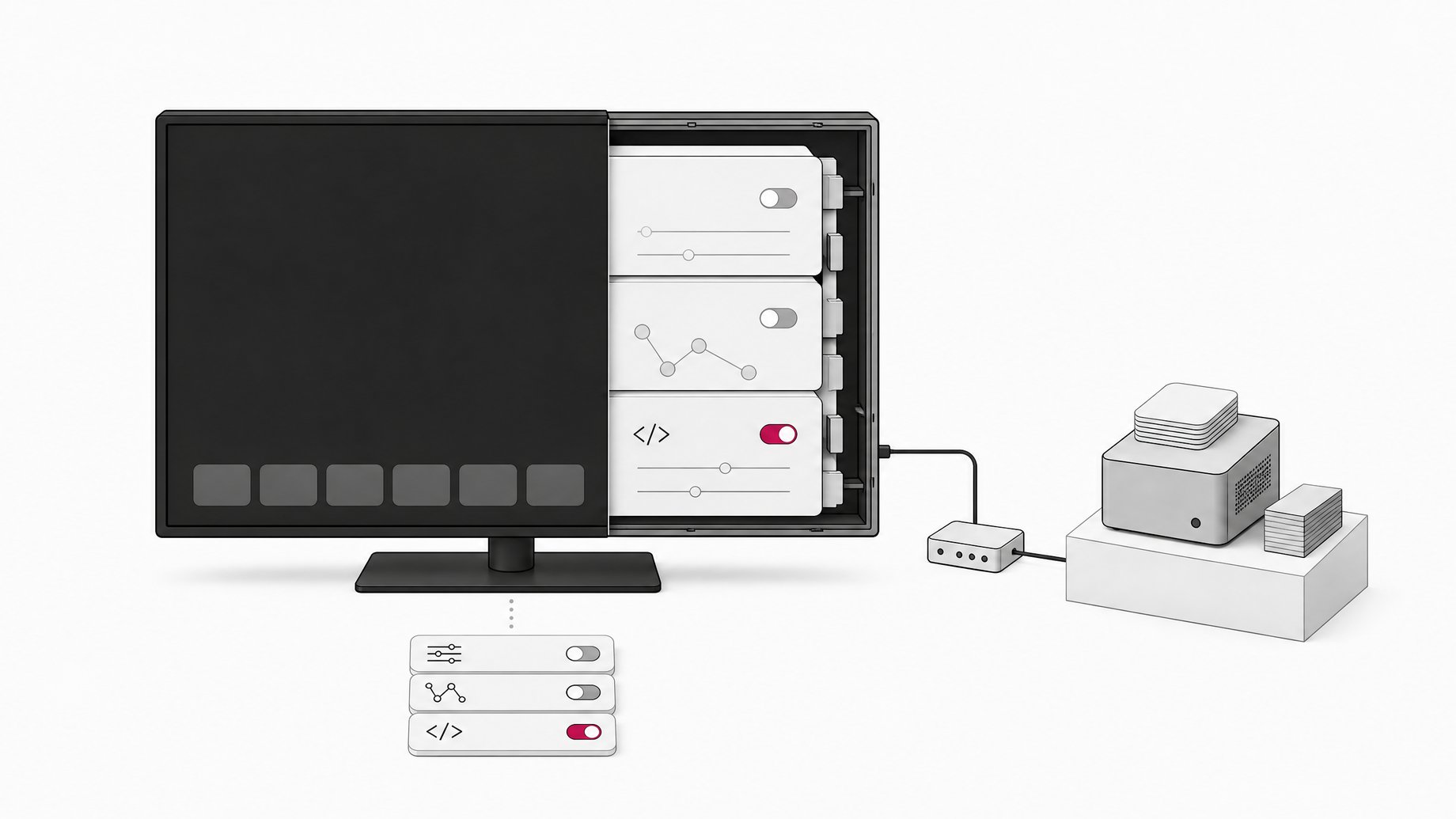
You turn on developer mode on the TV, note its IP address, and give a coding agent that address plus a careful prompt. In the demo, the Hermes agent was configured with a local Qwen 3 model running through Ollama. It connects to the TV over your home network and changes settings for you. A well-written prompt makes it ask before each change, disable things instead of deleting them, and keep an undo list.
TL;DR
- Both LG and Android TV need developer mode switched on before an agent can talk to them. LG uses a Developer Mode app, Android TV uses a hidden settings menu.
- You need the TV's IP address from its network settings, and the agent asks for it when you paste the prompt.
- Hermes agent is the layer that connects a model to your TV. Ollama runs the Qwen model locally and costs nothing.
- The whole project is essentially one prompt. It tells the agent to ask before every change, switch things off rather than delete them, and keep an undo list.
- The prompt is yours to edit, but factory reset is the fallback if a change goes wrong.
What do you need before you start?
Four things:
- A smart TV, either LG (webOS) or an Android TV device.
- A computer on the same home network as the TV.
- Ollama installed, with a Qwen 3 model pulled.
- Hermes agent installed and pointed at that Ollama model.
The demo used a 10-year-old LG TV, and the point was that older sets can be tidied up and made to feel current with this approach. The same big-picture flow works for other TVs: enable developer mode, get the IP, connect the agent.
How do you enable developer mode on an LG TV?
LG handles this through an app rather than a hidden menu.
- Open LG's app store on the TV.
- Search for the Developer Mode app and install it.
- Open the app and log in.
- Turn the developer mode setting on.
Once the toggle is on, the TV is ready to accept a connection from the agent.
How do you enable USB debugging on an Android TV?
Android TV hides developer options until you ask for them.
- Go to Settings, then the About page.
- Find the Android TV OS build entry.
- Click it seven times with your remote. Developer mode is now enabled.
- In the same developer settings, switch on USB debugging.
The seven-click trick is the standard way Android devices reveal developer options. The creator says to make sure USB debugging is switched on in the same developer mode settings. On a TV with no convenient USB port, that usually means connecting over the network, which is why you need the IP address.
How do you find your TV's IP address?
On any TV, open the network settings and read the IP address from the connection details. Write it down. The agent will ask for it when you give it the prompt.
A practical tip from general networking: if your router hands out addresses dynamically, the TV's IP can change after a reboot. Reserving an address for the TV in your router settings saves you from re-checking it each time.
How do you connect Hermes agent to Ollama?
The order is simple.
- Install Ollama.
- Pull a Qwen 3 model. The model is free to download and run.
- Install Hermes agent using the project's own install commands.
- Configure Hermes to use your Ollama-hosted model as its backend.
Ollama exposes a local API on your machine, and Hermes talks to that instead of a cloud provider. For the model pull, Ollama's standard form is:
ollama pull qwen3
Qwen 3 comes in several sizes. Pick one that fits your RAM or GPU memory. Smaller models respond faster but are more likely to fumble multi-step tasks, which matters when the agent is issuing commands to a real device. Check the Hermes documentation for the exact configuration fields, since they depend on the version you install.
What is a coding agent doing here?
A coding agent is software that connects a model to something it can act on. A bare model only produces text. The agent gives it tools: it can run commands on your computer, read the output, and decide what to do next. In this setup, Hermes takes the model's decisions and turns them into actual calls to your TV at the IP address you supplied.
That is also why the prompt matters so much. The model is not just answering questions. It is acting on hardware you own.
What should the safety prompt say?
The creator's entire project is one prompt, shared in a GitHub repo. It sets three rules:
- Ask before every change. The agent proposes an action and waits for your approval.
- Disable instead of delete. When removing or hiding something, it switches it off so it can be switched back on.
- Keep an undo list. Every change gets logged so you can reverse it later.
You paste the prompt into Hermes, and it asks for your TV's IP. From there you describe what you want done.
If you write your own, a minimal version of the same idea might read:
You are managing my TV at the IP address I give you.
Before any change, explain what you will do and wait for my yes.
Never uninstall or delete. Disable or hide instead.
Keep a numbered undo list of every change and how to reverse it.
That sketch is an illustration of the approach, not the original prompt. The original is more detailed.
Is it safe to let a local model change TV settings?
The risk is real but small. The approval step keeps you in control, and the disable-not-delete rule keeps most changes reversible. The undo list gives you a map back. Local models are also less predictable than the top hosted ones, so read each proposed action before you approve it, especially with smaller Qwen sizes.
If something does go wrong, a factory reset restores the TV to its default state. That is a blunt tool, since you lose your own settings and logins, but it means the worst case is an annoying afternoon rather than a dead TV.
What can you ask it to do?
The prompt is freely editable, so you can ask the agent for any customization the TV allows through the developer interface. The demo's headline result was making an old LG look modern and up to date. Start with small, visible tasks, check that the undo list works, and only then try bigger cleanups.
Frequently Asked Questions
Do I need to pay for anything?
No. Ollama and the Qwen model are free to run locally, and the prompt used in the demo is shared free by its creator. Your only cost is the computer you run it on.
Does this work on Samsung or other brands?
The tested paths here are LG and Android TV. The Android steps apply to devices running Android TV OS. Other platforms use different developer tools, so don't assume the same menus exist.
Why does the agent need my TV's IP address?
The agent reaches the TV over your local network, and the IP is how it finds the device. You enter it when the prompt asks for it. Both the TV and your computer should be on the same network.
What if the agent breaks something?
Use the undo list first, since the prompt makes the agent record how to reverse each change. If that fails, do a factory reset on the TV. Approving each change individually makes this rare.
How we source, write, and correct our articles. Editorial standards