How to Run DeepSeek and Qwen on One GPU With Colibri 2.1
Colibri 2.1 runs large MoE models on one GPU by spreading experts across VRAM, RAM and disk. See the install flow, GGUF import, expert map and profiling tab.

How do I install Colibri 2.1 and run large models on one GPU?
Clone the Colibri repo, then install a mixture-of-experts model through it. Colibri scans your CPU, RAM, free disk and GPU, picks a CUDA engine, builds it for your card, and downloads the model. It keeps the always-needed weights in memory and spreads the experts across VRAM, system RAM and disk, so the model never has to fit fully on the GPU. Version 2.1 also imports GGUF files without conversion and adds a new chat UI.
TL;DR
- Colibri 2.1 runs GGUF files as published, with no conversion and no second quantization step, and has better CUDA support.
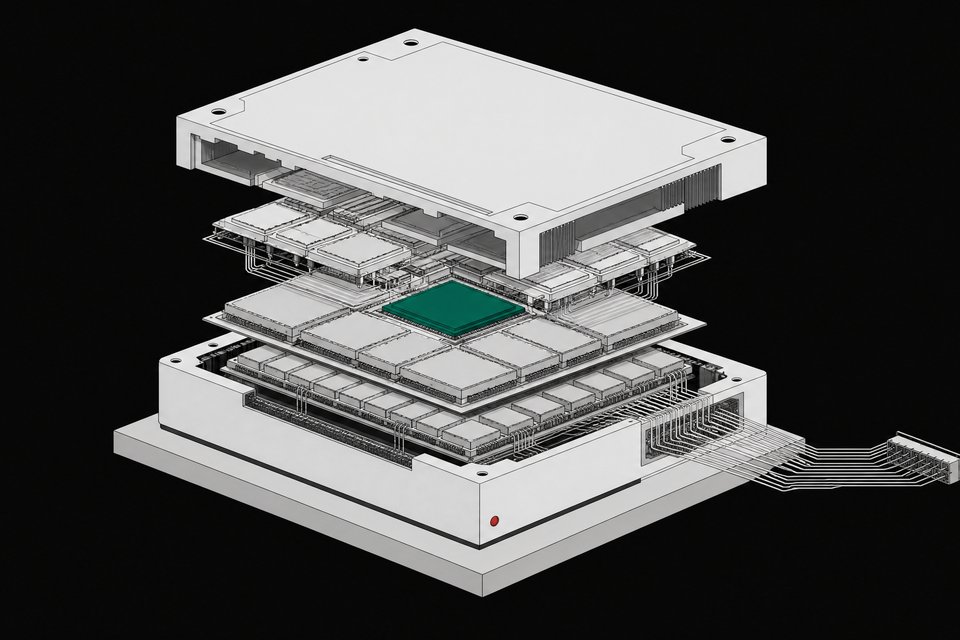
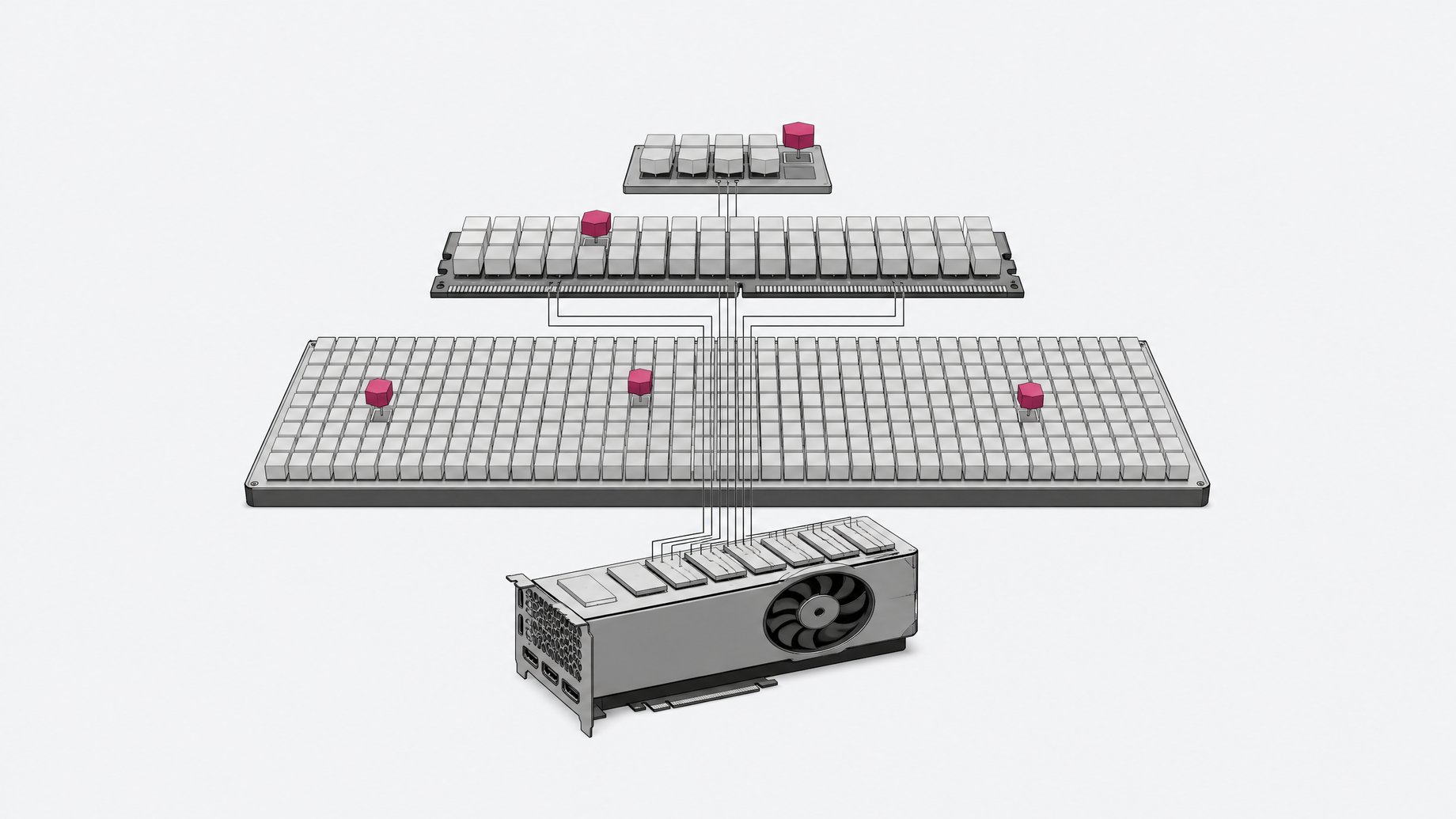
- The engine splits a model across VRAM, RAM and disk. Hot experts go to the GPU, a cache and the dense weights sit in RAM, and the remaining experts stay on disk.
- On a 48 GB GPU with about 94 GB of RAM, Qwen 3.6 ran fully in VRAM at roughly 88.6 tokens per second in one demonstrated turn.
- Qwen 3.6, Flint and an ~85 GB quantized DeepSeek were all loaded on one machine at once, with VRAM use staying under 24 GB in the demo.
- The new UI adds a live expert map, a profiling tab and hardware-based model suggestions.
- DeepSeek ran noticeably slower because experts spilled to RAM and disk, and new model families may still need engine work.
What is Colibri and how does it work?
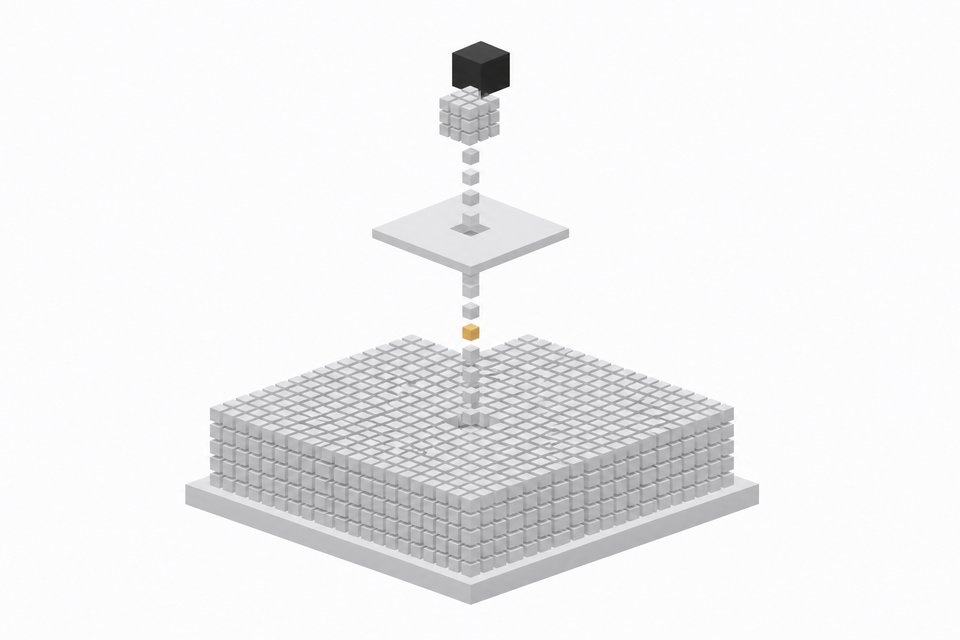
Colibri is a C-based engine for running very large open models on the hardware you already own. It targets mixture-of-experts (MoE) models. In an MoE model, a router picks a few experts for every token, and only those experts do the work. Most of the model sits idle at any given moment.
Colibri uses that sparsity. It treats memory as three tiers:
| Tier | What lives there | Speed |
|---|---|---|
| GPU memory (VRAM) | The most frequently used experts | Fastest |
| System RAM | The always-needed dense weights plus a cache | Middle |
| Disk | All remaining experts | Slowest, largest |
When the router asks for an expert, Colibri fetches it from wherever it currently sits. A model much bigger than your VRAM can still run. The cost shows up as speed once experts have to come from RAM or disk.
What do I need before installing?
The walkthrough used an Ubuntu machine with one GPU carrying 48 GB of VRAM and about 94 GB of system RAM. Disk space matters too. The largest model in the test was an ~85 GB quantized DeepSeek download on a machine with about 95 GB free.
Your numbers will differ, and that is fine. Colibri measures the machine and builds a placement plan for it. A smaller card just means more experts land in RAM or on disk.
How do I install Colibri and run Qwen 3.6?
The flow in the demo had three steps:
- Clone the Colibri repository.
- Use Colibri's install path to fetch Qwen 3.6, a mixture-of-experts model. Colibri scans the CPU, RAM, free disk and GPU, selects the CUDA engine and builds it for your card.
- Wait for the model download (about 23 GB for Qwen 3.6) and let Colibri launch the browser page automatically.
Check the repository README for the exact commands for your version. They are not reproduced here.
What does the startup plan tell you?
Before serving, Colibri prints a placement plan. It is worth reading, because it shows how the model was split on your machine. For Qwen 3.6 on the 48 GB card, the plan reported:
- All 40 layers on the GPU.
- 256 experts per layer.
- Only 4.9 GB of dense weights held in RAM.
- A RAM cache of 74.1 GB.
The takeaway: the larger the model, the more Colibri pushes to RAM. Qwen 3.6 fit on the card with room to spare.
How fast is it, and how do I read the new chat UI?
The built-in terminal chat only shows the answer. The new UI opens in the browser and adds a monitor panel on the left. For one coding prompt it reported:
- 327 tokens in 3.7 seconds, about 88.6 tokens per second, with prompt reading included.
- Expert read and IO wait both at zero, because every expert already sat in VRAM.
- RAM at 19.5 GB.
- A 131K context window with only 0.3% used.
VRAM use sat around 22 GB while Qwen was loaded.
What does the profiling tab show?
It breaks each turn into IO wait, expert math, attention, the output layer and other. If a turn feels slow, this is where you check whether disk reads are the cause. In the Qwen run, IO wait was zero seconds.
What is the expert map?
The expert map draws one block per layer, with each block holding that layer's experts. Qwen 3.6 shows 40 blocks of 256 experts. Green means the expert sits in GPU memory. Blue means RAM and gray means disk. As the model answers, the experts the router picks light up, so you can watch routing happen. With everything in VRAM, the Qwen map was solid green and the response finished too fast to follow the highlights.
What is the System 1 option?
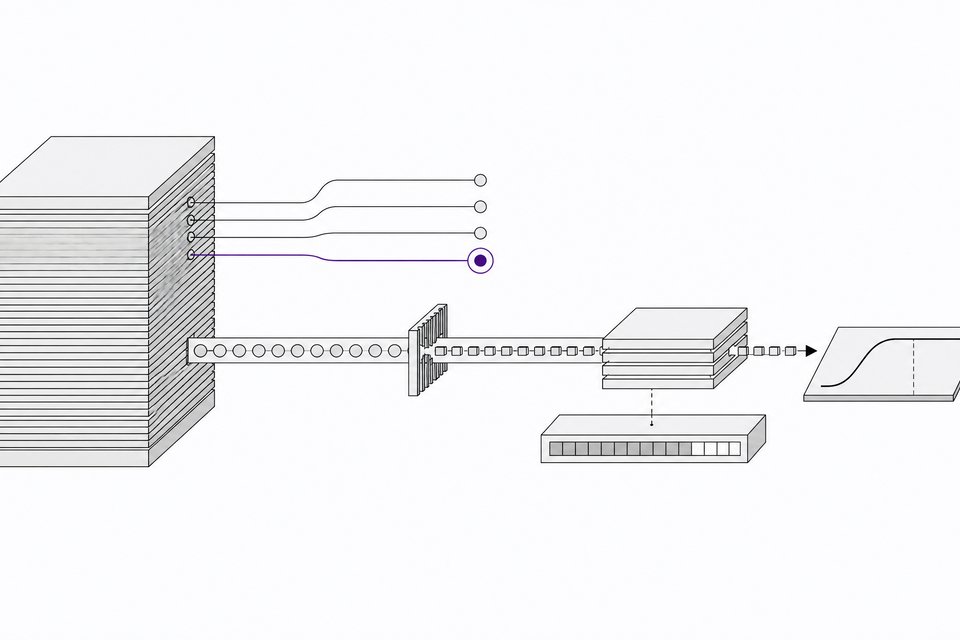
System 1 lets you give the model some text plus a fixed set of allowed answers, such as approve, request changes or ask a question for a pull request. Instead of writing a paragraph, it returns a probability for each option and how sure it is.
How do the model suggestions work?
A models page reads your CPU, RAM, GPU and free disk, and measures RAM and SSD speed. From that it suggests models that fit, and marks the one currently in use.
How do I import a GGUF into Colibri without conversion?
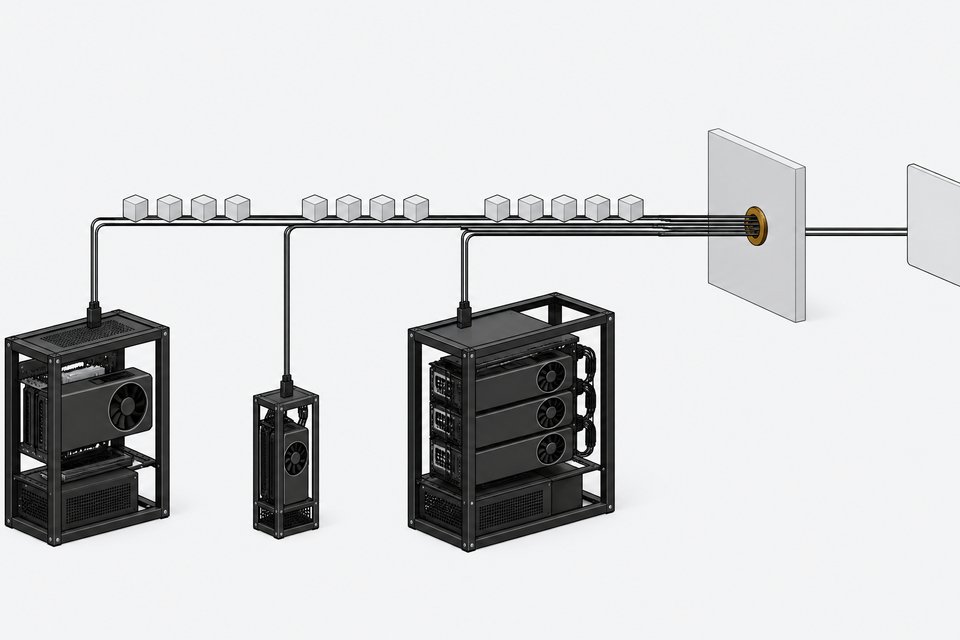
This is the headline change in 2.1. Download a GGUF from anywhere, independent of Colibri, then run Colibri's import command on it. No conversion and no re-quantization is needed.
In the demo, a quantized build of Flint was downloaded separately and imported. The import finished quickly and reported 49 layers. After that, it was available to chat with in the UI.
Qwen stayed loaded while Flint ran. The reported VRAM use did not change meaningfully, and both models fit under 24 GB of VRAM.
Can one GPU run DeepSeek next to Qwen and Flint?
In the demo, yes. The final test imported an ~85 GB quantized DeepSeek GGUF using the same import command, then served it. The log showed Colibri placing DeepSeek partly on the GPU and offloading the rest to RAM and disk. VRAM use stayed under 24 GB with all three models loaded.
Expect the trade-off. DeepSeek responded slowly, and during prompt reading the expert map was initially quiet. Shortening the prompt let the map light up, and all blocks became active. The slowdown is the cost of pulling experts from RAM and disk instead of VRAM. The profiling tab is the place to confirm that.
Is it plug and play for every new model?
Not entirely. The creator noted that upcoming models would likely still need engine work. GGUF import removes the conversion step, but a new architecture may need support added to Colibri before it runs. Treat it as strong for supported MoE families, and check support before downloading something huge.
Frequently Asked Questions
Do I need a 48 GB GPU to use Colibri 2.1?
The demo used a 48 GB card, but the design does not require it. Colibri plans around whatever hardware it detects and moves more experts to RAM and disk on smaller cards. Smaller VRAM should mean lower speed, not an inability to load. No smaller-GPU numbers were shown in the demo.
Do GGUF files need to be converted for Colibri?
No. Version 2.1 imports GGUF files as published, with no conversion and no second quantization. You download the file yourself, then run the import command. Flint and DeepSeek were both imported this way.
Why was DeepSeek slower than Qwen?
Qwen 3.6 fit entirely in VRAM, so there were no disk reads. The DeepSeek build is around 85 GB, so Colibri spread it across the GPU, RAM and disk, and fetching experts from slower tiers takes time. The profiling tab's IO wait figure shows how much.
What does the expert map color code mean?
Green means an expert is in GPU memory, blue means it is in RAM, and gray means it is on disk. Experts the router selects light up as the model generates, so you can see both placement and routing.
How we source, write, and correct our articles. Editorial standards