How to Install Mesh LLM and Pool GPUs Across Machines
Install Mesh LLM with Docker, start a node with a Gemma model, edit and validate config, and use one OpenAI-compatible API across pooled GPUs.

What is Mesh LLM and how do you install it?
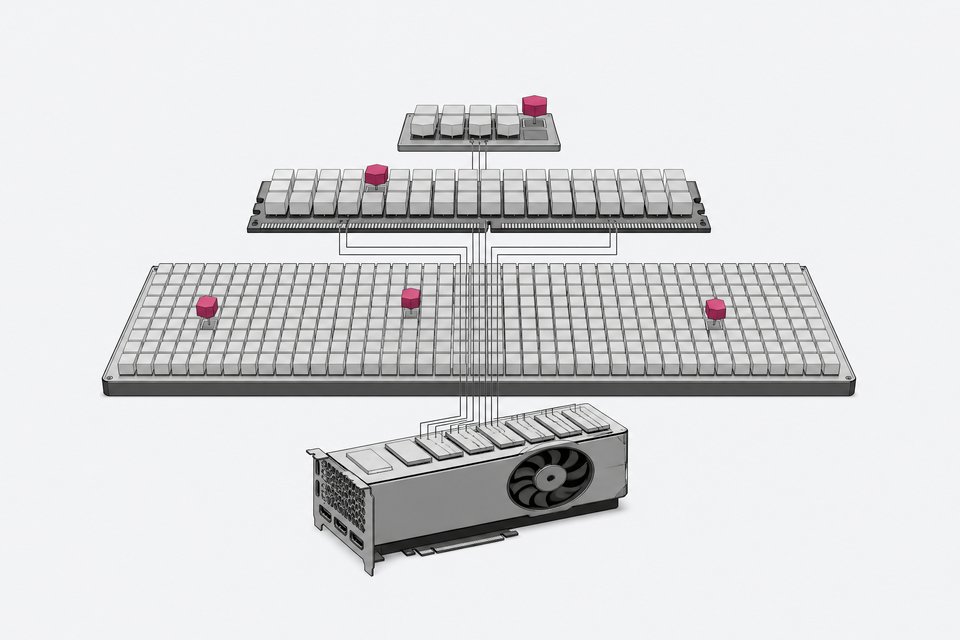
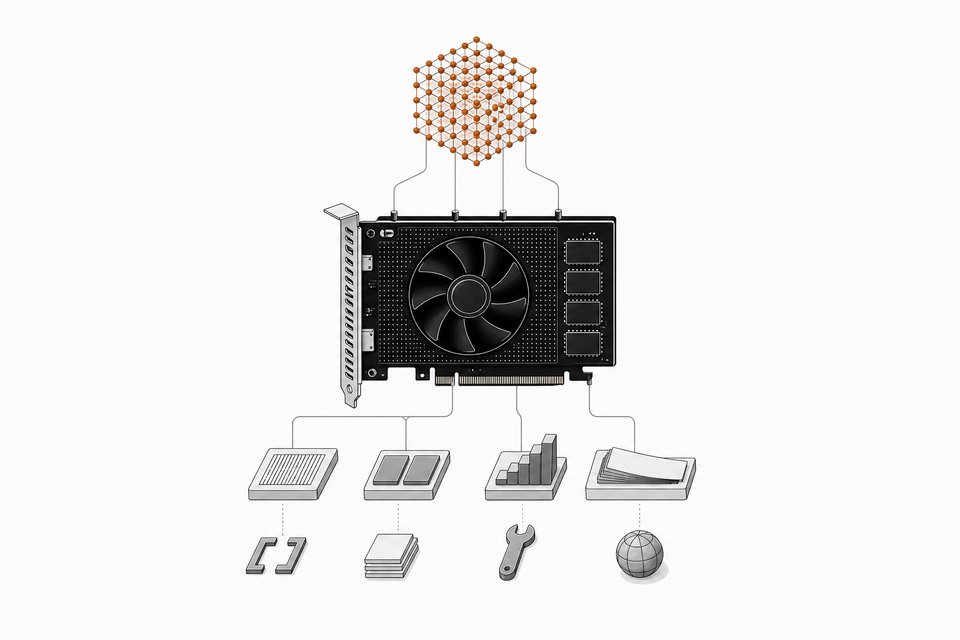
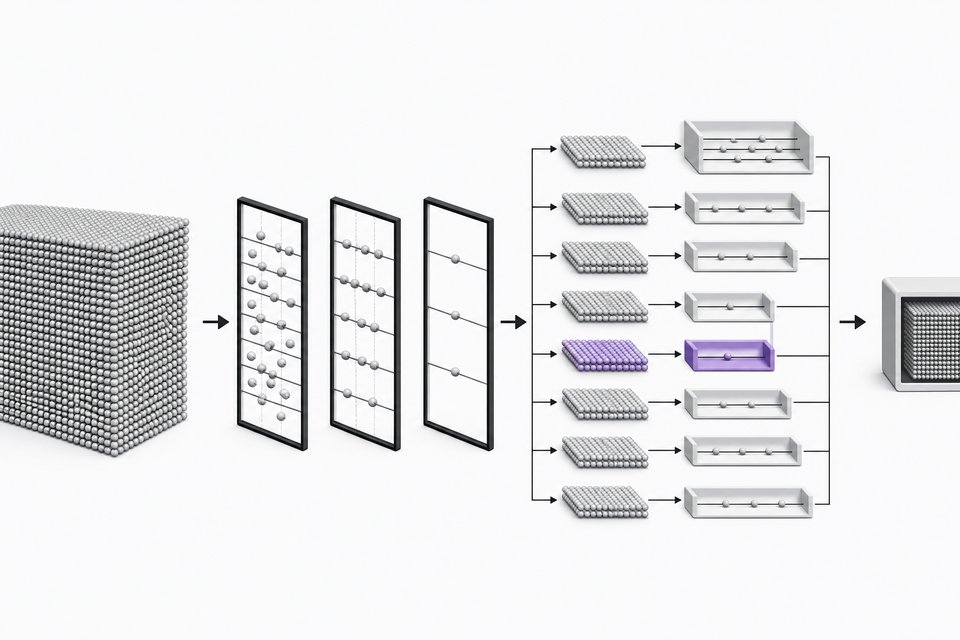
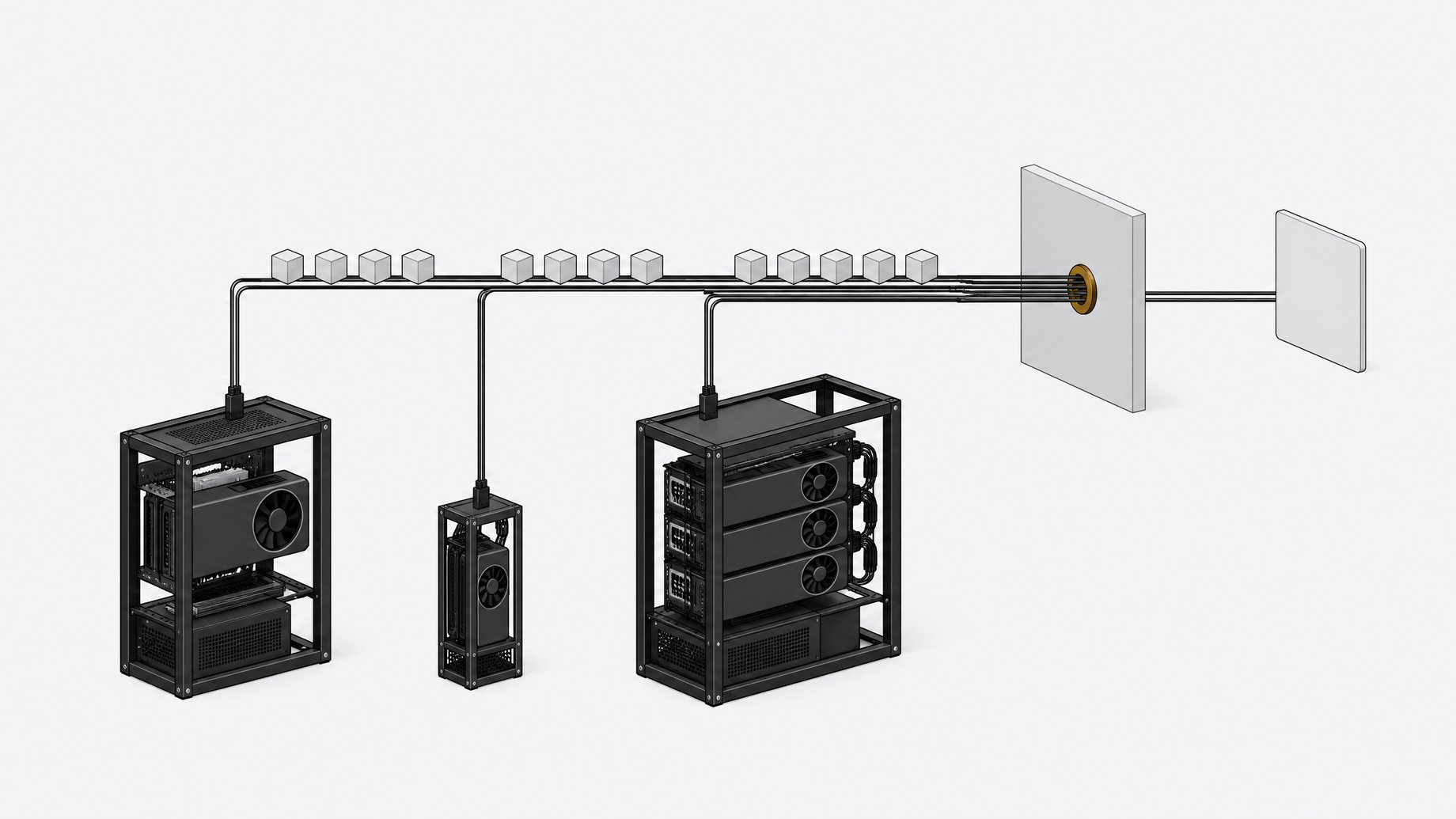
Mesh LLM is a tool that pools GPUs and memory across machines and exposes them as one OpenAI-compatible API. You start a single node, add more machines later, and the mesh decides whether a model runs locally, routes to a peer, or splits across machines when it is too big for one box. Install it with a shell one-liner on Linux, Mac, or Windows via WSL2. If you hit library errors, use the Docker image instead.
TL;DR
- Mesh LLM presents one OpenAI-compatible endpoint over the GPUs of many machines, so existing clients and agents can point at it without code changes.
- The shell one-liner installs in seconds, but it can complain about missing libraries depending on your platform.
- The Docker route avoids those prerequisites and works the same on Ubuntu, Windows, and other systems, as long as the container can see your GPU.
- A node starts with GPU access, host networking, two host folders for config and models, and a named mesh. The model downloads on first start.
- The web UI on port 3131 shows models, slots, and context settings, and includes a chat box.
- A virtual model called mesh asks every loaded model in parallel and returns one combined answer. It needs at least two models.
What does Mesh LLM actually do?
The pitch is simple. You run open models on your own hardware, share them with friends or a team, and plug in coding agents or any tool that speaks the OpenAI API. The routing logic lives in the mesh, not in your client.
The project's demo diagram shows a live mesh with 31 nodes, 277.6 GB of pooled VRAM, and five active models, alongside a model catalog. Your own setup will be much smaller at first. The walkthrough below starts with a single machine: one Ubuntu box with an NVIDIA H100 (80 GB VRAM). The mesh logic is the same whether you have one node or many.
How do you install Mesh LLM with the one-liner?
Run the install one-liner from the project's documentation in your shell. It works on Linux, on Mac, and on Windows through WSL2. The install finishes within seconds.
After that, do three things:
- Add the install location to your shell
PATH, as the installer prompts you to. - Source your shell profile so the change takes effect.
- Run the version command (
mesh-llm version) to confirm it works.
Check the installer output carefully. In the demo, the version command worked, but the tool also complained about some libraries. Those errors vary by platform, and the creator's verdict was that the native install is not especially solid yet. Treat that as one person's experience on one machine, but it is a fair reason to try Docker before you spend an hour chasing dependencies.
Why use the Docker route instead?
Docker gives you an isolated environment, so you skip the native prerequisites and library mismatches. The same approach works on Ubuntu, Windows, and other operating systems.
The sequence looks like this:
- Pull the Mesh LLM Docker image.
- Confirm the container can see your GPU. In the demo it could.
- Run the version command inside the container to verify the build.
The GPU check matters most. If the container cannot see the card, nothing downstream will use it, so settle that before you start a node.
How do you start a node with a Gemma model?
First, create two folders on the host, one for Mesh LLM's config (a dot-prefixed directory) and one for models. Mounting them into the container means your config and downloaded weights survive restarts.
Then start the node with these elements in a single Docker run command:
- GPU access for the container
- Host networking
- The two mounted folders
- A Gemma model
- A named mesh
On startup, Mesh LLM detects your system configuration and begins discovery. If other hosts exist, it lists them. In the demo there were no other peers, only the local GPU. It then downloads the model, which takes a while on the first run, and loads it. When the status shows ready, the node is usable. You can pick any model you like, not just Gemma.
How do you test the OpenAI-compatible API?
From a second terminal, list the available models, then send a standard chat completion request. The demo asked the model to say hello in one sentence and got a normal reply. Because the endpoint follows the OpenAI format, any client that lets you set a custom base URL should work. That includes coding agents and chat front ends.
What can you do in the web UI on port 3131?
Open localhost:3131 in a browser. The interface shows the mesh, its models, and configuration, and it has a chat tab that behaves like any chat box.
Two caveats from the demo:
- The mesh was public, because it was exposed publicly. You can convert it to a private mesh if you do not want strangers on it.
- Model count is limited by your GPU. An 80 GB card has room for several models, but a smaller card will not.
How do you edit and validate the config?
You can change settings in the UI, but the terminal route is easier to repeat. Stop the node with Ctrl+C (or capital Q), then run the config edit command to change the node settings in the config file. After saving, run the validate command. A good file returns a message that the config is valid.
Restart the node as you would any Docker container. In the demo, the loaded model panel then showed two slots and an 8192 token context window, matching the edited file. A hard refresh of the web UI (Ctrl+F5) showed the same values under the general view.
How do you load more models?
Use the model config page in the UI, or run a load command in the terminal. The demo loaded a second model, a Qwen 3 build from Unsloth, this way. The load request is asynchronous. The command returning "accepted" does not mean the download is done. Wait a few seconds, refresh, or run the status command to see when the model appears as warmed up.
One useful behavior: a loaded model does not necessarily occupy GPU memory. In the demo, VRAM use showed only the model that had most recently served a request. The model moves onto the GPU when you use it. That means you can keep several models registered without filling VRAM, though you will see load time on first use.
What is the virtual "mesh" model?
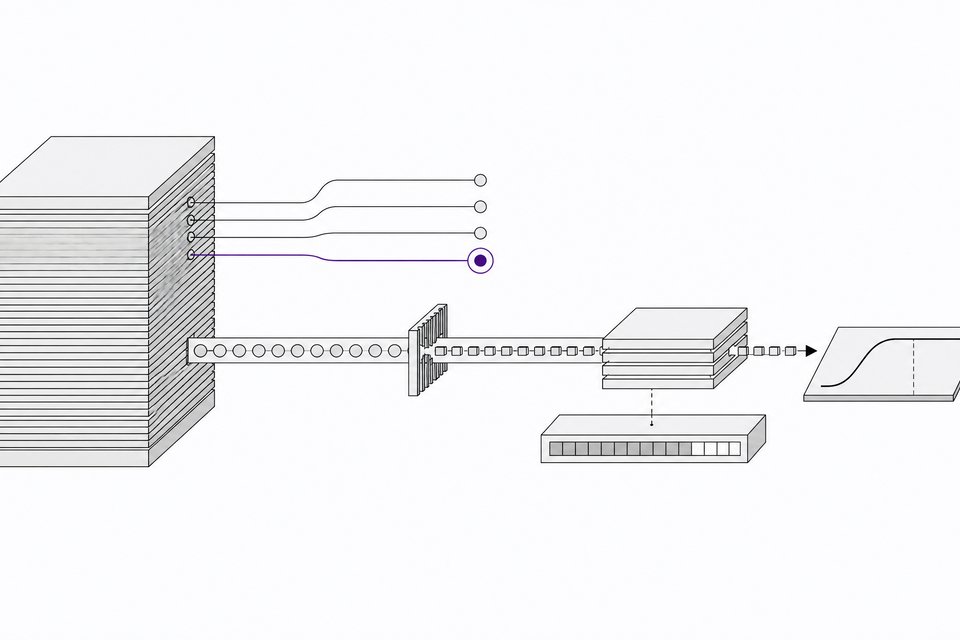
"mesh" is not a real model. It is a virtual name. Send a request with the model set to mesh, and Mesh LLM queries every model in the pool in parallel, compares the answers, and returns one reply. You need at least two loaded models for this to make sense. The demo had Qwen 3 and Gemma loaded and asked for the capital of Japan.
In the UI, leaving the model selector on automatic does the same thing. The interface shows it consulting peers and corroborating responses, then streams the result. You can expand the response to see the reasoning detail. Expect higher resource use and latency than a single model, since several models answer each question.
Does Mesh LLM support more than one model format?
The project publishes paired artifacts for backend parity testing. One example on Hugging Face is a GGUF f16 conversion of google/gemma-3-1b-it, paired with an MLX bf16 version. Both passed the project's exact prompt suite, with a parity result of match. That tells you the maintainers test GGUF against MLX behavior. It is a test artifact, not a recommended general-purpose download.
Frequently Asked Questions
Do I need multiple machines to try Mesh LLM?
No. You can start with one node and a single GPU, as the demo did on one H100. Additional machines can join later, and the mesh handles routing and splitting.
Does Mesh LLM work on Windows and Mac?
The one-liner runs on Linux, Mac, and Windows through WSL2. Docker is the suggested fallback on any OS if you see library errors during a native install.
Is the mesh private by default?
In the demo it was public, because the node was exposed publicly. You can make it a private mesh. Check the visibility setting before you expose a node on an open network.
Why does the mesh model need two models?
The virtual mesh model asks every loaded model the same question, compares their answers, and returns one reply. With only one model there is nothing to compare, so load at least two.
How we source, write, and correct our articles. Editorial standards