How Do You Set Up Grokbot and Build a Team of AI Agents?
Set up Grokbot step by step: create your first bot, connect Gmail and Drive, pin a chief of staff, and organize a multi-agent research desk.

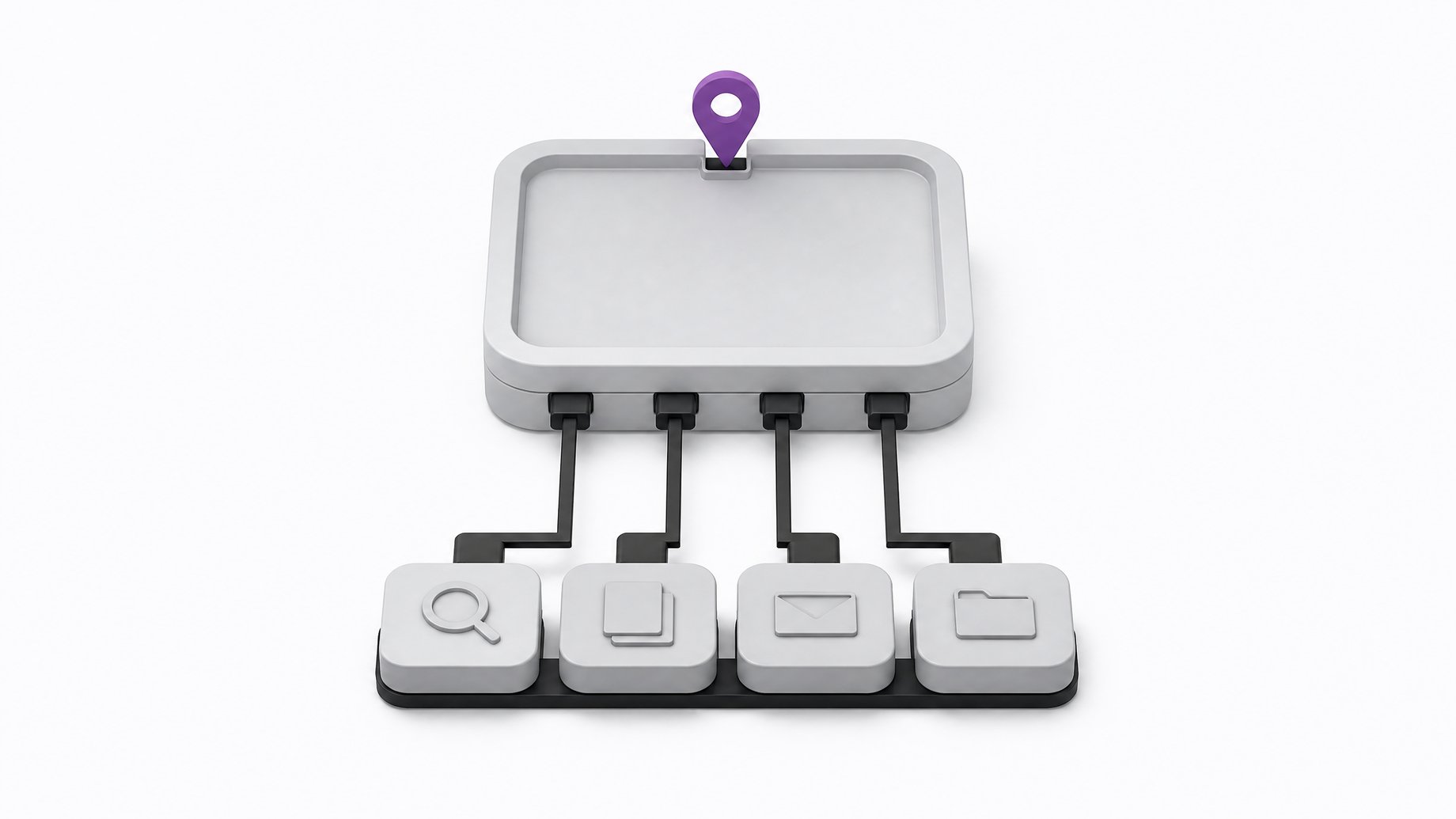
How do you set up Grokbot and organize multiple bots into a team?
Download the Grokbot desktop app, create an account, and click the plus button to make your first bot. Give it a name, a mission, and optionally an avatar and personality. Then connect apps like Gmail, Google Calendar, and Google Drive. Create a "chief of staff" bot early and pin it as your single point of contact. It can spin up and manage every other specialist bot, which run in the cloud on their own machine.
TL;DR
- Grokbot is built so you can run several bots like remote employees, each with its own role, rather than one chat assistant.
- Start with one repeatable job, not a whole org chart. Break your daily workflow into small pieces and automate them one at a time.
- Bots share one cloud machine but get separate workspaces, so an app connected once is available to all of them.
- A pinned chief of staff bot takes your instructions, delegates, and filters notifications so you aren't pinged by every bot.
- The chief of staff can create, rename, and manage bots, but you must delete bots yourself.
- Bots keep working in the cloud while your devices are off, and you can watch their screen from a side panel.
What is Grokbot?
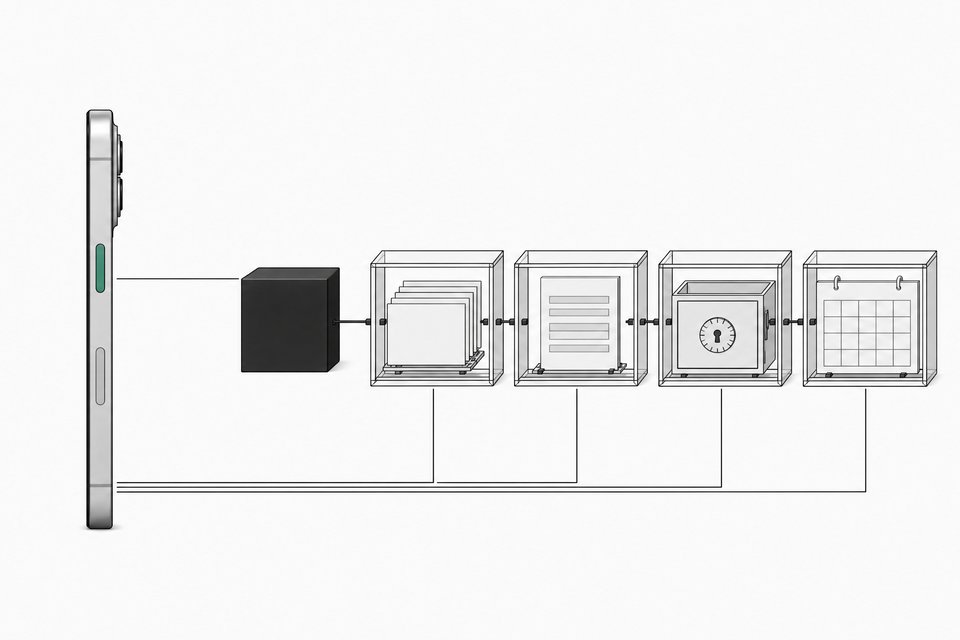
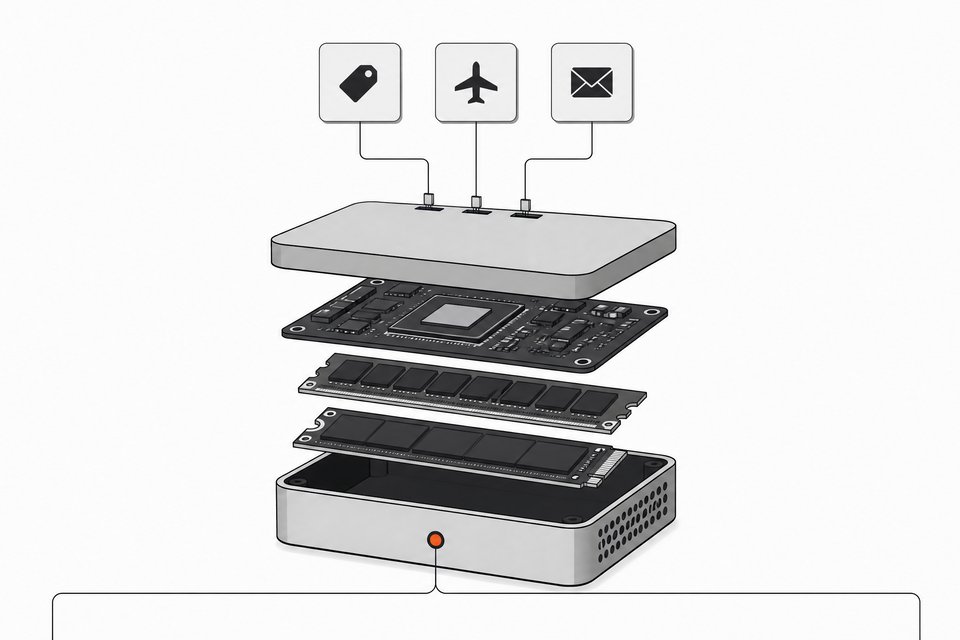
Grokbot is a desktop app (with access from phone and laptop) for creating and running AI agents that behave like drop-in remote employees. Each bot gets its own workspace on a shared cloud machine. That machine runs around the clock, so a bot can browse the web, read files, and produce output after you close your laptop.
One detail worth knowing: the creator in the source walkthrough said the product will route requests across models. A simple greeting might go to a smaller model, while a heavy coding request could go to a stronger one, including Anthropic models, Cursor models, or Grok. That routing was described as an announcement from Elon Musk, so treat the exact model lineup as something to verify in the app. The walkthrough was also a sponsored video from SpaceX, which is worth keeping in mind when weighing the enthusiasm.
How do you create your first bot?
The steps are short.
- Open the app and click the plus button.
- Choose Create new bot.
- Enter a name and describe its mission in plain language.
- Add an avatar and a bit of personality if you want one.
Personality is optional, but the demo's author likes it. His reasoning: bots are bots, but they don't have to feel robotic. One of his finance bots trash-talks about beating the S&P 500. Whether that helps you is a matter of taste.
Start narrow. Pick one task you do repeatedly and give a bot that job. The mindset shift is breaking your day into small pieces and handing each piece to a bot.
How do you connect Gmail, Drive, and Calendar?
Click Connect apps in the app. Google Calendar, Google Drive, and Gmail are on the list, along with prebuilt connections for tools like Notion and Canva. The catalog also covers design, code, data, sales, and finance categories.
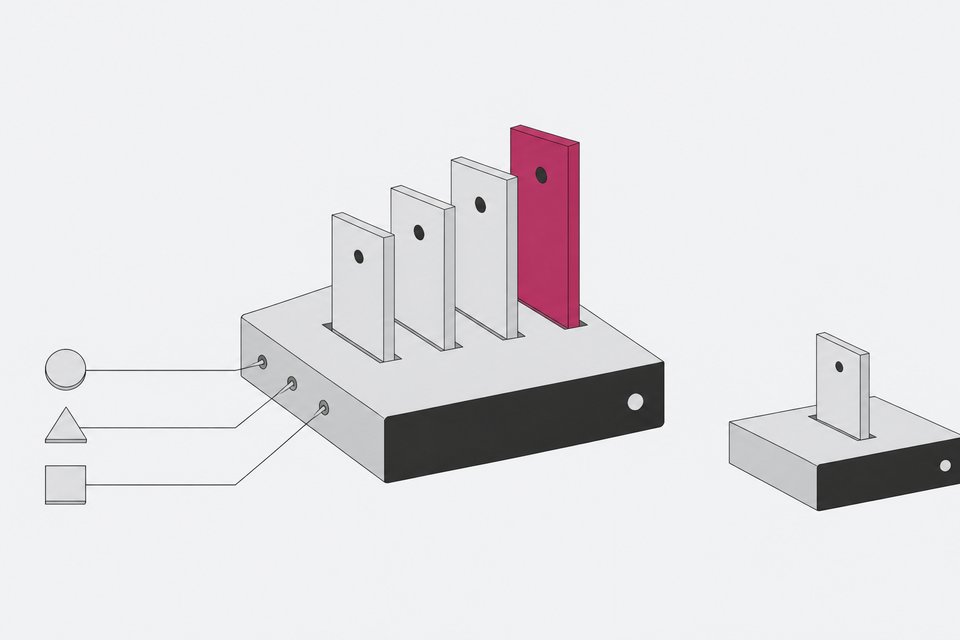
The permission model matters here. Every bot has its own workspace, but all of them sit on the same machine, much like several user accounts on one Windows, Linux, or Mac computer. When you connect an app, assume all your bots can reach it. A bot that has no reason to touch your Gmail probably won't, but the access exists. Connect only what the team needs, and think about that before you add something sensitive.
Can a bot have its own email address?
Yes. Ask any bot to create an email address with a username you choose. It sets up an Agent Mail account on its own. The walkthrough described Agent Mail as a free service built for AI agents rather than humans, where an agent can send and receive mail.
This is useful because you often don't want a bot sending mail as you. With its own inbox, a bot can subscribe to newsletters, receive information, and sign up for services without touching your personal account. You don't configure anything. You just ask.
What does the main Grokbot do, and why add a chief of staff?
The app includes a primary bot called Grokbot, described as a general-purpose executive assistant. It is a good default for ad hoc requests.
The chief of staff is a different role, and the demo's author suggests making it your first or second bot. Grokbot may even prompt you to create one. The idea is that you talk to one bot, not a dozen.
What the chief of staff does:
- Takes your instructions and delegates to the right specialist.
- Filters the noise, surfacing only what you need to know.
- Creates new bots, renames them, and gives them portraits.
- Manages the team day to day.
One limit: at this point, it cannot delete bots. If you want a bot gone, you do it yourself, which protects you from losing a bot's data by accident.
To keep it handy, right-click the bot's avatar and choose Pin. Pinned bots stay at the top of the list. Unpinned bots at the top generally show whichever one most recently had a notification.
How do you watch a bot work?
Give a bot a task and press go. In the demo, the main bot was told to check what the top investing and stock subreddits were discussing. It then ran that job on its own cloud computer.
Click the bot's name and a right-hand panel opens with a few tabs:
- Details for the bot's configuration.
- Library for the files and images it has produced.
- Computer for a live view of its screen.
The computer view showed the bot browsing Wall Street Bets, then the stocks subreddit, reading headlines in real time. You can close the view and the bot keeps going. Because the work happens in the cloud, it doesn't depend on your devices being on.
What does a multi-agent team look like in practice?
The example in the walkthrough was a simulated hedge fund research desk. The creator told the chief of staff to create the bots and then asked each one to describe its job and what it needed to do better. That last question is a handy habit for any team: it surfaces missing tools, like a code repository for the builder bot.
| Bot | Role on the desk |
|---|---|
| Hard Code | Builder. Made a dark-mode dashboard called Hedge Desk Arena with tickers, starting cash, a live trade feed, and a bot activity stream. Also handles scripts, web apps, and automations. |
| Clerk | Watches SEC filings for companies on a watch list, logs them, and flags oddities like insider sales or big deals. |
| Mapper | Tracks the AI supply chain: chips, foundry equipment, memory, data centers, power, cloud. |
| Calendar | Keeps track of earnings dates, Fed meetings, and inflation reports. |
| Bear | The skeptic. Challenges other bots when they may be wrong or missing something. |
| Analyst | Earnings analyst. |
| Keeper | Bookkeeper. Maintains holdings, measures drift from target weights, and drafts rebalance plans for sign-off. |
| Taxman | Handles tax questions and tax-advantaged accounts. |
| Paper Trader | Makes simulated trades and runs backtests, judged against the S&P 500. |
The example is a paper account, and the creator was explicit that none of it is financial advice or real trading. Treat it as a template for structure, not a strategy.
How do bots hand off work and cluster together?
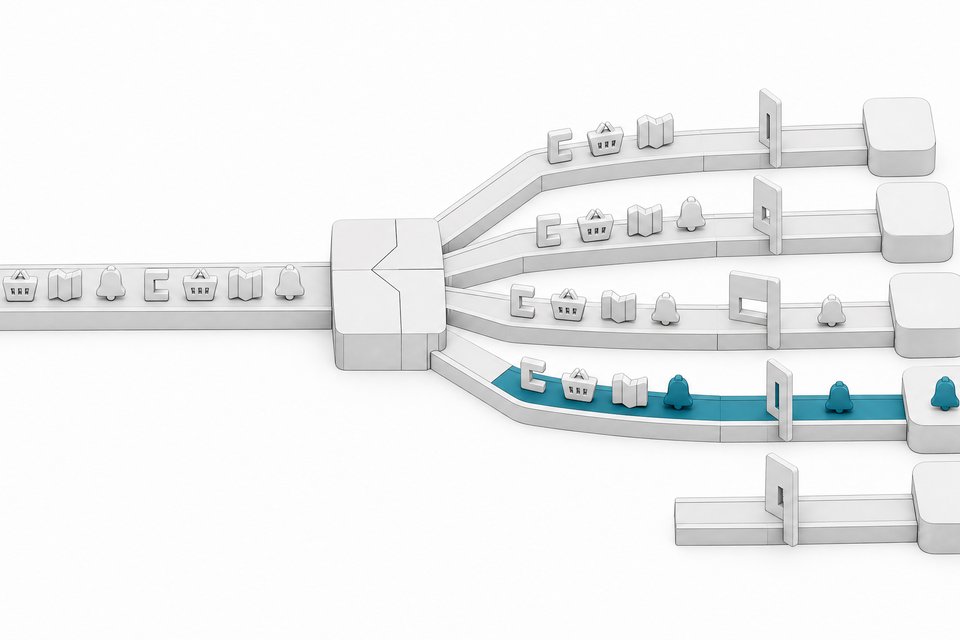
Two patterns show up in the desk. First, bots pass work along: one finishes its piece and hands it to the next. Second, some bots work in tighter clusters. Clerk, for instance, listed Analyst, Bear, Mapper, and Calendar as its closest collaborators. Bear challenging Mapper's report is a good picture of the payoff, since a dedicated critic catches claims that a single agent would let through.
The source also points to grouping bots so they collaborate more efficiently, and to putting recurring tasks on a schedule so work is done by morning. The available transcript cuts off before the exact steps for group chats and scheduled routines, so check the app's own menus for those rather than relying on a second-hand description.
Is a bot team worth setting up?
It depends on whether your work splits into recurring, well-defined pieces. A research desk, a content pipeline, or an inbox-and-calendar routine fit well. A vague "do my job" instruction does not.
Practical advice from the walkthrough:
- Begin with one job and add bots as the first one proves useful.
- Route everything through a chief of staff so you aren't managing every bot directly.
- Add a skeptic role to check the others.
- Keep sensitive apps unconnected unless the team needs them.
- Ask each bot what it needs to do its job better.
Frequently Asked Questions
Do I need to keep my computer on for Grokbot to work?
No. Each bot runs on its own computer in the cloud, so it keeps working when your devices are off. You can check in from desktop, phone, or laptop.
Can a chief of staff bot delete other bots?
No. It can create, rename, manage, and delegate to bots, and give them portraits, but deletion is left to you. That avoids accidentally losing a bot's data.
Do all my bots get access to the apps I connect?
Assume yes. Bots share one machine with separate workspaces, and a permission granted once should apply to all of them. A bot that has no task involving Gmail is unlikely to use it, but the access exists.
Can a bot have its own email address?
Yes. Ask the bot to create an email with a username you pick, and it sets up an Agent Mail address on its own. That gives it a private inbox for newsletters and sign-ups without using your account.
Is the hedge fund example real trading?
No. It was a paper trading simulation used to show how roles and handoffs work. The creator stated it is not financial advice.
How we source, write, and correct our articles. Editorial standards