How Do You Set Up Grok Bot's Pages, 1Password and Action Button?
Setup guide for Grok Bot's new pages and slides, Apple app connections, 1Password vaults, memory import and an iPhone Action Button voice shortcut.

What is Grok Bot and what changed recently?
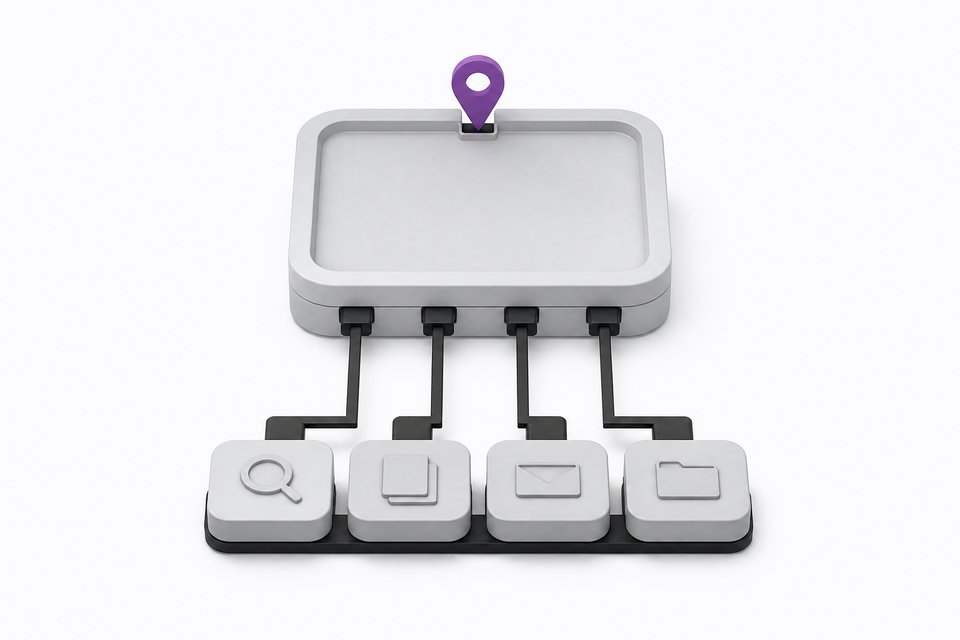
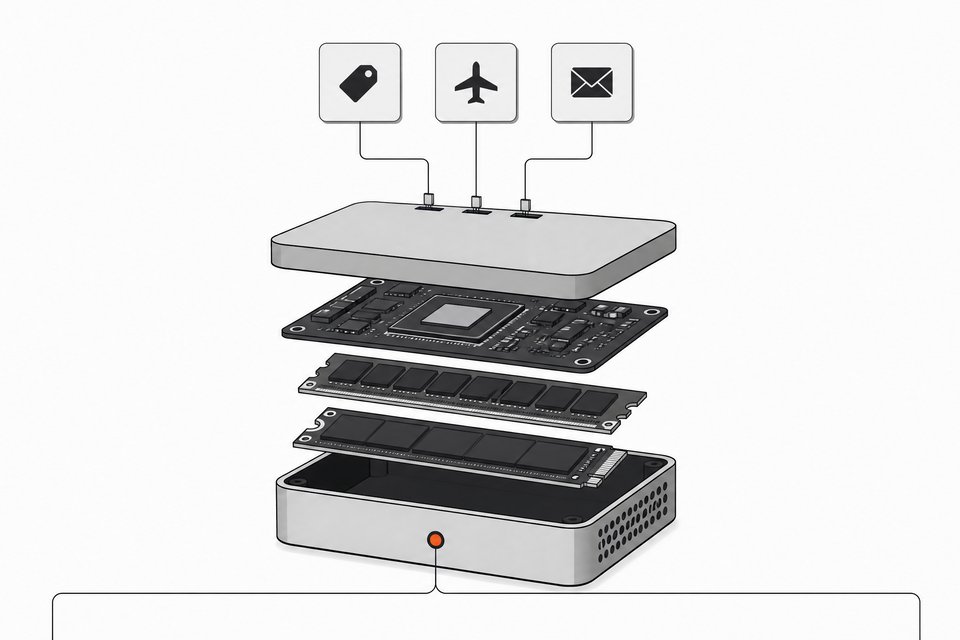
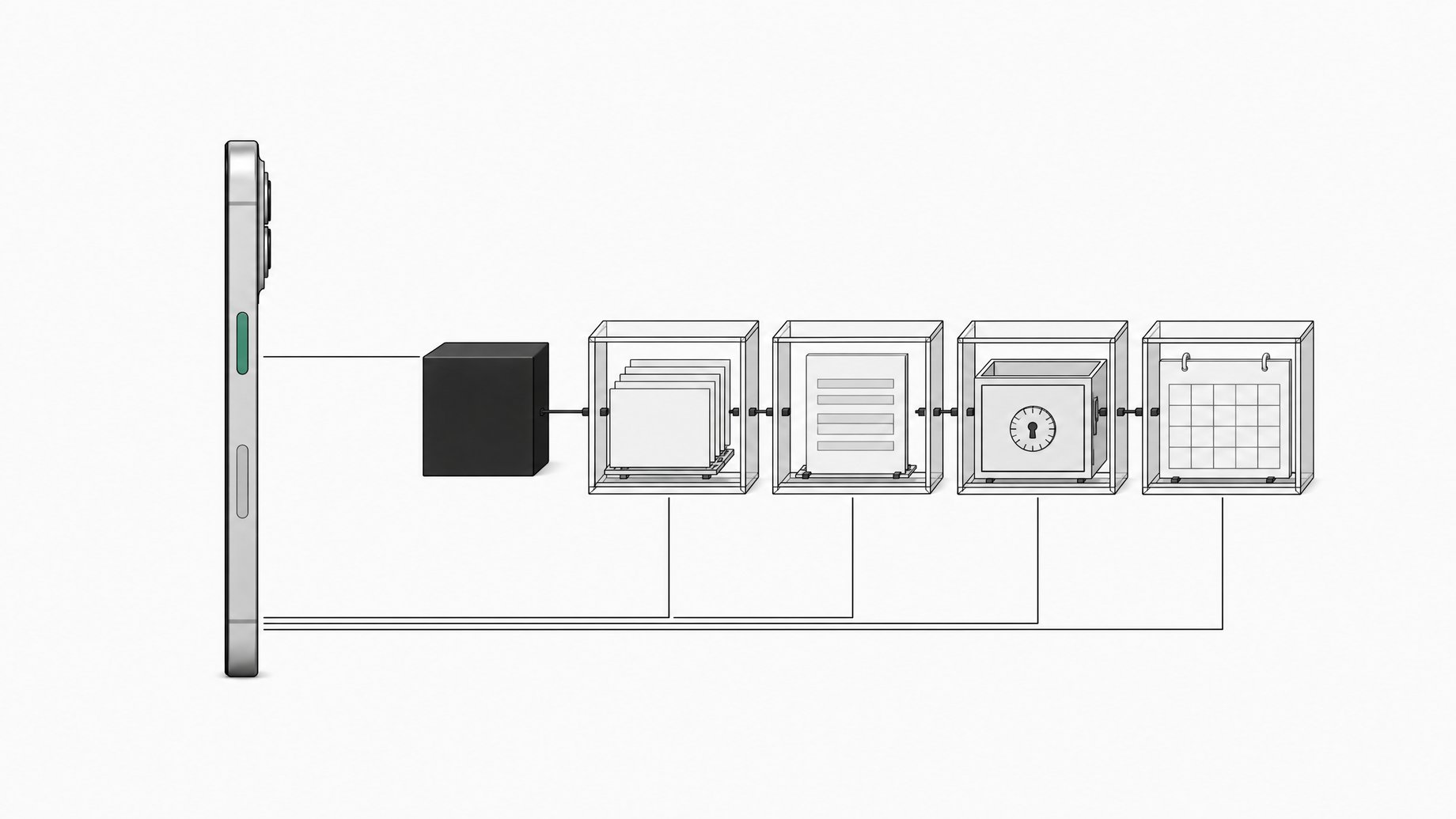
Grok Bot is an assistant that splits your work into separate bots instead of separate chats. Each bot has its own computer, including a browser, and the bots can communicate and work together. Recent additions include pages and slides, connections to Apple phone apps, a 1Password integration, a memory import tool, and a voice-chat shortcut for the iPhone Action Button. This guide covers how each one works.
TL;DR
- Grok Bot treats each bot as a separate "AI employee" with its own computer, so you add a bot per job (invoices, podcasts, daily digest) instead of cramming everything into one chat.
- Pages are markdown documents that live inside spaces, and a slides feature now appears alongside them.
- Apple app connections are set up from the mobile app, not the desktop, and cover many but not all Apple apps.
- 1Password support lets you share a dedicated vault with the bot so it can log into sites through its own browser.
- Memory import under settings lets you move context from ChatGPT or Claude into Grok Bot, and the same approach works in reverse.
- On iPhone, the Action Button can be mapped to start a voice chat with your main bot. Samsung's programmable side button may allow the same.
How does the multi-bot model work?
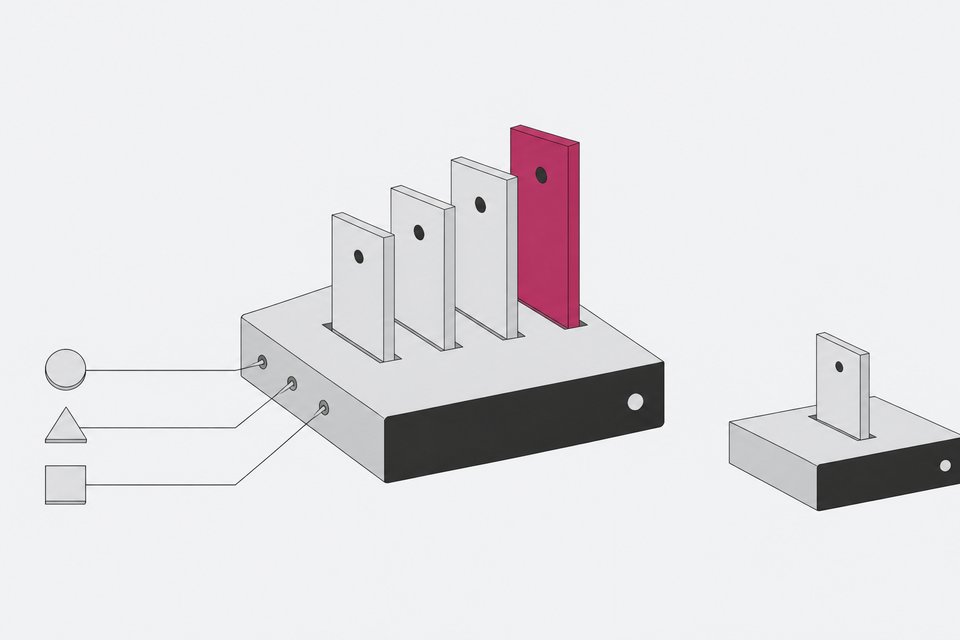
The easiest mental model is hiring. If you want help with invoices, you add a bot for invoices. If you want podcast tracking, you add another. Because every bot has its own computer, one bot's browser sessions and files don't clutter another's. They can still pass work to each other.
It resembles ChatGPT's always-on "dots" assistant (a computer that proactively texts you), but split across multiple bots. One bot can act as the orchestrator, the main one you talk to, while specialist bots handle narrow jobs.
The workflow that makes any of this useful is a loop. You set something up, the bot does it, you criticize the output, and the bot adds rules. Over time it accumulates rules, and you can build skills for specific tasks and keep training them. Expect the first run to be imperfect.
What can a small business actually do with it?
The common complaint about assistants is not knowing what to ask them. One useful reference is a post on the Grok Bot subreddit from a small business owner who listed roughly 30 things he does with his bot across home and work.
A few examples from that list:
- Managing his children's school emails so nothing is missed, including details buried in attachments.
- Writing vendor purchase orders in QuickBooks, tagging each line to the job, and emailing the vendor.
- The usual meal-planning and sports-schedule tasks.
The creator who surfaced the post described a similar workflow of his own. He does something similar, reconciling the invoices in his email inbox with the company card.
A practical trick: paste the whole list into your assistant. If it already has enough context on you, it can tell you which items apply. Most use cases depend on your own business and pain points, so treat the list as inspiration rather than a template.
How do pages and slides work?
Pages work like a mix of a Word document and a Notion page. Under the hood they are markdown files, a plain text format that AI models handle well. They live inside spaces, which is similar to how ChatGPT organizes its spaces and pages.
Slides showed up more recently. The creator noticed them without any announcement, and described them as Grok Bot's own version of Google Slides.
One example of a page in use: a dedicated bot scans a calendar for podcast appearances, gathers links and transcripts, and keeps a page tracking recent ones. The page can then be shared with a team. The pattern generalizes. Give a bot one narrow job, and give it a page as the place where results accumulate.
How do you connect Apple apps?
This catches people out. The option isn't where you'd expect on desktop.
- Open the Grok Bot mobile app.
- Go to the connections area, where the Apple apps are listed.
- Choose the apps you want to link, such as Contacts or Calendar.
Not every Apple app is supported, but many are. According to the demonstration, the connections can cover home control and full calendar access.
ChatGPT made a related change the same week. You can now connect iCloud Mail and iCloud Calendar through customize plugins. Before that, Apple email users had to migrate to Gmail or auto-forward their mail to an inbox that could be connected.
Is it safe to give a bot logins through 1Password?
The integration is built around separation. You create a vault used only for your AI agent, share it with Grok Bot, and put in only the logins you want it to have. The bot can then use those credentials in its own browser, which is how it signs into sites on your behalf.
The argument for this setup is that a password manager beats reusing passwords. Each credential is unique and the vault is encrypted, so a breach shouldn't expose anything without your master password. The creator noted that recent security scares make good password hygiene more pressing. Treat his security claims as a general argument, not a guarantee. The practical safeguards are specific:
- Use a vault dedicated to the bot, never your main one.
- Add only the logins the bot needs for its tasks.
- Use a long, complex master password.
The creator found no equivalent 1Password connector in ChatGPT, only developer tools, so this is a Grok Bot advantage for now.
How do you set up the Action Button voice shortcut?
This one is iPhone only, and requires a model with an Action Button (the creator says phones from the past two years). The Action Button is the one by the volume buttons.
- Open your iPhone's Action Button settings.
- Find the Grok Bot option to start voice chat.
- Assign it.
Now a single press opens a voice conversation with your main bot. The creator uses it for ordering food, replying to emails, and getting a daily digest. He previously mapped the button to start a new ChatGPT chat, and says the dot doesn't have an equivalent shortcut yet.
Samsung phones have a programmable side button, so a similar setup may be possible there. That wasn't confirmed in a demo, so check your own device.
How does memory import work?
If you already have months of context in another assistant, you don't have to start over.
- Go to settings, then general, then import.
- Select start import.
- Copy the prompt Grok Bot gives you and run it in the assistant you're leaving, such as ChatGPT or Claude.
- Bring the resulting memories and context back into Grok Bot.
The same idea works in reverse. Run an equivalent prompt inside Grok Bot and move your context back to ChatGPT, Claude, or whatever you use later. That lowers the cost of switching tools.
Is it worth trying?
If you already use an always-on assistant and want specialized agents, it's worth a look, and the source suggests you can try it on a free plan. The pages, the Apple connections, and the Action Button shortcut are small conveniences that add up in daily use. The main caveat is that custom rules and instructions aren't always followed perfectly in this class of tools. The creator hit this with ChatGPT's dots when delegating Slack meeting booking. Plan on iterating.
Frequently Asked Questions
Why can't I find the Apple app connections on desktop?
They are set up from the Grok Bot mobile app. The creator initially looked for Apple Contacts on desktop and only found the option after switching to the phone.
Can I use Grok Bot's Action Button shortcut on Android?
The Action Button is an iPhone feature. Samsung phones have a programmable side button, and the creator suggested the same shortcut might work there, but he didn't demonstrate it.
Do I have to use 1Password specifically?
The integration covered here is 1Password. The creator recommends a password manager generally and says another one is fine, but only 1Password was shown working inside Grok Bot.
Can I take my memories out of Grok Bot later?
Yes, according to the demonstration. The import prompt can be run in the opposite direction to move your context to ChatGPT, Claude, or another assistant.
How we source, write, and correct our articles. Editorial standards