How to Generate Editable SVGs With Ideogram's Vector Model
Ideogram's new vector model turns prompts into clean, editable SVGs. Here is how to use it, edit elements, download files, and spot the wonky outputs.

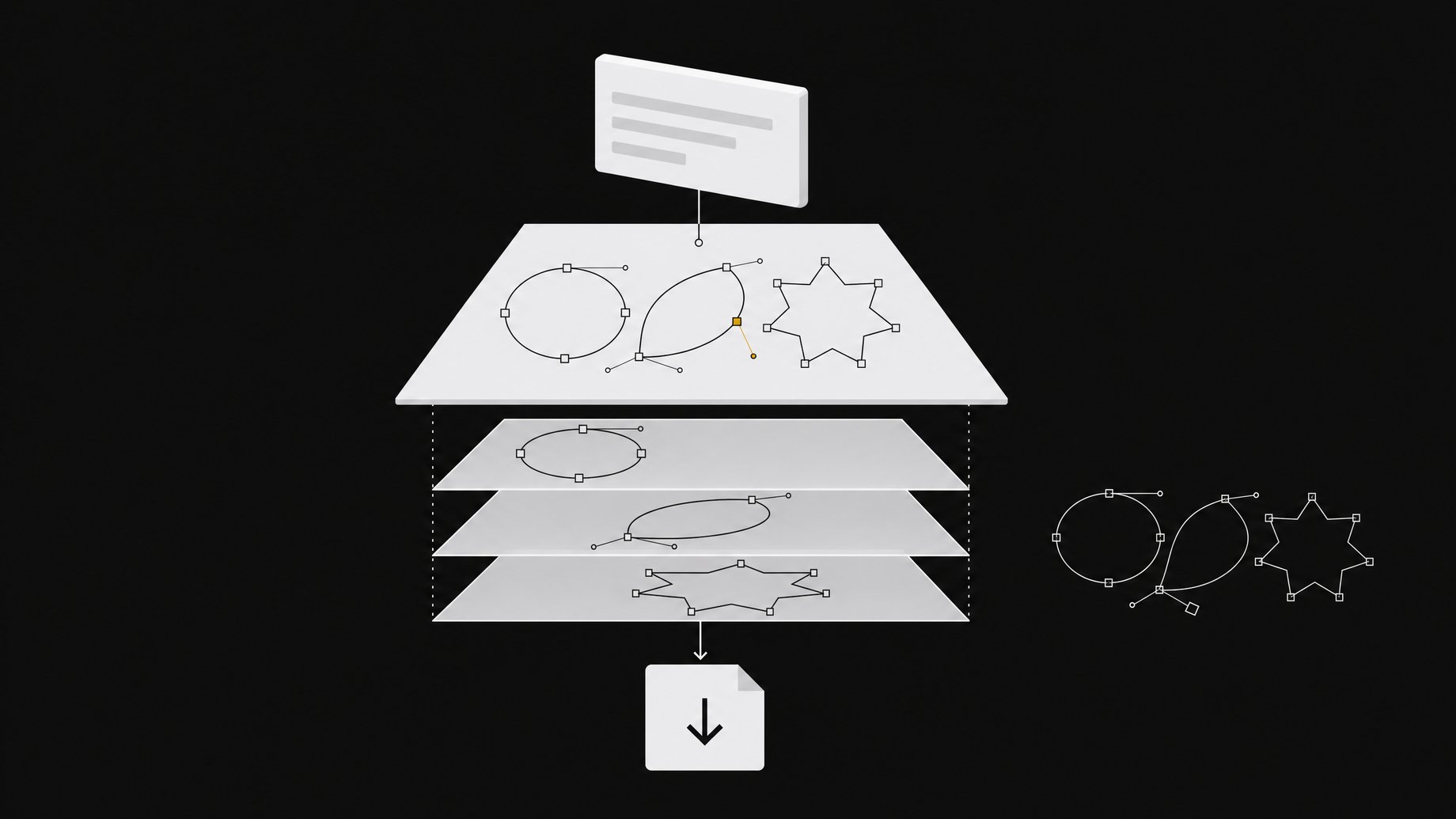
How do you generate editable SVGs with Ideogram's vector model?
Go to the vector model page on Ideogram's site (ideogram.ai/models/vector), type a prompt describing the graphic you want, and wait roughly 30 seconds. The model returns four vector options. Pick the cleanest one, select individual elements to edit them, then download the result directly as an SVG. Because the output is vector, it scales to any size without losing sharpness, though some generations come out with odd details like extra limbs.
TL;DR
- Ideogram released a dedicated vector model that outputs SVG files instead of flat pixel images.
- A prompt returns four candidates in about 30 seconds, so you pick the best rather than accept the first result.
- You can select and edit individual elements inside a generated graphic, and download the file directly as an SVG.
- Quality is uneven. In one test with a monkey on roller skates, two of four results looked solid and the others had extra legs.
- Vector output scales infinitely, which makes it useful for logos, icons, and illustrations that need to work at many sizes.
- Pricing, plan limits, and API availability were not covered in the material I worked from, so check Ideogram's site before planning around it.
What is Ideogram's vector model?
Ideogram is a company known for its own proprietary image generation model. This week it added a separate vector model. Instead of producing a grid of pixels like a PNG or JPEG, it produces an SVG, a format that describes an image as shapes, paths, and fills.
That difference matters for practical reasons. A raster image gets blurry or jagged when you enlarge it. An SVG stays sharp at any size, and each shape is a separate object you can recolor, move, or delete. Until now, getting that from an AI tool usually meant generating a raster image and running it through an auto-tracing step, which often produced messy paths. A model that outputs vectors natively aims to skip that conversion.
How do you use it, step by step?
The workflow is short.
- Open the vector model page on Ideogram's site.
- Write a prompt for the graphic you want.
- Wait about 30 seconds for four candidates.
- Compare them. Discard any with obvious anatomy or shape errors.
- Select individual elements of the one you like and adjust them.
- Download the finished graphic as an SVG.
The presenter, who had slightly early access and had been playing with it for a few days, demonstrated this with a wolf howling at the moon and a monkey on roller skates. Both are simple, self-contained subjects with a clear silhouette, which is the kind of thing vector styles handle well.
What should you put in a vector prompt?
The source material doesn't include an official prompting guide, so treat the following as general practice rather than Ideogram's documented advice.
- Keep the subject singular and clear. "A wolf howling at the moon" is easier to render as clean shapes than a crowded scene.
- Name the style you want. Words like flat, minimal, line art, or icon push toward the simple shapes that suit SVG.
- Limit the palette. Asking for two or three colors tends to produce cleaner fills and fewer stray shapes.
- Avoid photographic detail. Gradients, textures, and realistic lighting are what raster models do well. Vectors reward bold shapes.
- Generate more than once. With four options per run and uneven quality, a second run is cheap insurance.
Can you actually edit the elements?
Yes. This is the main reason to use a vector model over an image model. In the demo, individual parts of a generated graphic could be selected and edited. For a design workflow, that means you can fix one wrong color or remove a stray shape without regenerating the whole image.
Once you download the SVG, you can also take it into any vector editor. Figma, Illustrator, and Inkscape all open SVG files, and a developer can drop one into a web page or a codebase. Because SVG is a text-based format, you can even open the file in a code editor and change fills or sizes by hand.
Where does the model still falter?
It isn't as dialed in as Ideogram's image generation. In the monkey on roller skates test, a couple of the four results came back with extra legs. Two of the four looked solid. That is a decent hit rate for a new model, but it means you should expect to throw some outputs away.
Beyond what was shown, here are things worth checking on any AI-generated SVG:
| Check | Why it matters |
|---|---|
| Shape count and layering | Hundreds of tiny stray shapes make editing painful. |
| File size | Complex paths can bloat an SVG that should be small. |
| Text | Lettering may be drawn as shapes, so it won't be editable as type. |
| Anatomy and symmetry | Extra limbs and warped proportions are the failure seen so far. |
| Edge cleanliness | Zoom in to confirm curves are smooth, not jittery. |
I can't say how it handles logos, text-heavy designs, or complex illustrations, because those weren't part of the demonstration. Test your own use case before committing.
Is it worth trying?
For designers and developers who regularly need simple scalable graphics, probably. The value is speed: four vector options in about 30 seconds, editable on the spot, exportable as SVG. That covers icons, spot illustrations, placeholder art, and concept sketches well.
It is less convincing if you need precise brand work. Anything where a stray leg or a misshapen curve would be a problem needs a human pass in a vector editor. Treat the output as a strong first draft.
Cost is the open question. I don't have pricing, credit costs, or usage limits for the vector model, so verify those on Ideogram's site. The same goes for whether an API exists for building this into an app.
How does it compare to tracing a raster image?
Auto-tracing converts a finished pixel image into paths after the fact. It works, but the result often has too many nodes and shapes that don't match how a designer would build the artwork. A model that generates SVG directly can, in principle, produce more logical objects that are easier to select and change. The demo showed element-level selection working, which supports that idea, though a head-to-head comparison wasn't part of it. If you already have a tracing workflow you like, run the same prompt through both and compare the layers.
Frequently Asked Questions
Where do I find Ideogram's vector model?
It lives on Ideogram's site at ideogram.ai/models/vector. It rolled out publicly this week, and a few testers had early access beforehand.
How many results does one prompt give me?
In the demo, each prompt produced four vector options in about 30 seconds. That lets you choose the best one and skip any with defects.
Can I download the result as an SVG?
Yes. Generated graphics can be downloaded directly as SVG files. Those open in standard vector tools and work on the web.
Are the results always clean?
No. Some outputs have problems such as extra legs on a character. In one test, two of four results looked solid. Plan to review every output and regenerate when needed.
Can I edit the graphic after generating it?
Yes. You can select individual elements and edit them, and after download you can keep editing in any SVG-compatible editor.
How we source, write, and correct our articles. Editorial standards