How to Make an AI Animated Explainer Video in Genspark
A step-by-step workflow for a 30 to 90 second AI animated explainer in Genspark Media Studio: character sheets, story bible, 3D blocking, drafts, music.

How do you make an animated explainer video with AI?
You make it in stages, and you lock the look before you spend money on video. Draft low-resolution images, turn the best one into a character sheet, collect those sheets into a story bible (a saved set of rules and reference art), block out the shot in 3D, render a cheap 480p draft, then render the final at 1080p. Add AI music and assemble everything in an editor. Genspark Media Studio puts all of these steps in one workspace, driven by a chat agent.
TL;DR
- Consistency is the hard part of AI video, so the workflow is built around locking a character's look early and reusing it in every shot.
- A story bible stores your characters, tone, era and genre, so a prompt like "use the wood elf team" means the same thing every time.
- 3D blocking lets you place characters and move a camera on a rough stage before you pay for a final render.
- Draft at 480p, finish at 1080p. Check composition cheaply, then render the clip you actually keep.
- AI music rarely lands on the first try, so generate several tracks across different models and styles and pick one.
- You talk to an agent in plain language. You don't need to know design vocabulary or animation software.
Why use one workspace instead of five subscriptions?
The creator who demonstrated this workflow (a game designer making a 30 to 90 second promo for a fantasy football game where AI coaches the teams) described the usual problem. Making an explainer with AI normally means separate subscriptions for images, video and voices, plus something 3D to keep scenes consistent. You end up dragging files between tools, and nothing matches.
Genspark Media Studio bundles those pieces. According to the demo, it offers multiple video models (including Seedance, Kling and Veo), image models (including Nano Banana, Flux, GPT Image, Grok Imagine, Ideogram and Seedream), ElevenLabs for voice, and Marble and Tripo for 3D. An agent plans and runs the production while you chat with it.
The main benefit is less file shuffling. A chat agent also writes the detailed prompts for you, which is where most beginners get stuck.
Step 1: How do you draft the look with images?
Start with the characters. Open a new project and describe what you want in a sentence. In the demo, the request was an anime version of mummies playing fantasy football.
The agent then asks clarifying questions before generating anything:
- Which image model for the drafts?
- Which interpretation of the idea (a laptop and draft board, or mummies playing football in an ancient arena)?
- Which aspect ratio?
- Which style (here, 90s cel-shaded comedy anime)?
Those questions save time because image models often misread ambiguous ideas. Keep the drafts low resolution. You are only deciding what the characters look like.
Then iterate with small nudges. The demo used plain requests like "make it bigger and more dangerous" to tune details such as shoulder pads. The agent keeps the original image as a style reference and produces variations. Doing this by hand used to mean typing six prompts for six variations and hoping each one resembled the reference.
Model choice affects cost. The demo listed GPT Image on free quota (the weekly free quota is for paid members only, and free accounts don't get it), while one Nano Banana option was listed at 17 credits per image. Check the current numbers in your own account.
Step 2: How do you make a character sheet?
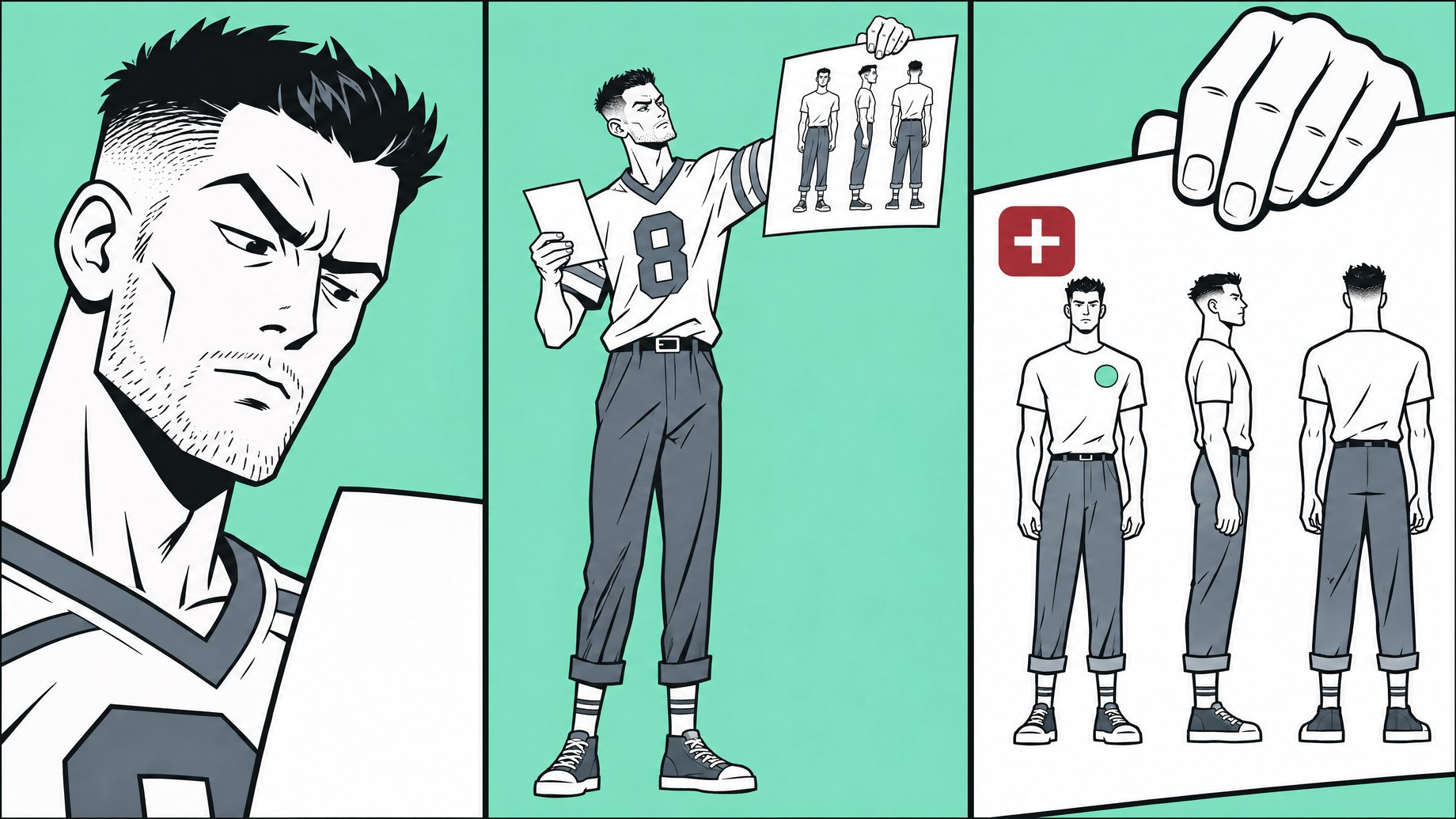
Once one draft looks right, ask the agent to turn it into a reference. The prompt in the demo was roughly: take this image as the template and create a high-quality character sheet for the story bible, idle pose, no ball, just standing.
Keep the sheet focused on the character alone. If the ball needs a specific look, make a separate image for it and add that to the story bible separately. The workspace shows these images as connected nodes, so you can see which image produced which.
Make sheets showing different angles, with the hair, face, armor and boots clearly visible. Higher resolution matters here, because these become the reference for everything else.
Step 3: What is a story bible and how do you build one?
A story bible is the rulebook for your universe. In Media Studio, you create one from a production brief plus a folder of reference images. Genspark also has an AI Drive where generated assets are saved, so you can pull from there.
In the demo, the creator uploaded character images (announcers, players, full team lineups, special equipment) and typed none of the details. The system inferred the tone, era, genre and output format, and turned each distinct character into a named character. It even worked out who the heroes and villains were. You review the result, then click "looks good" or request changes.
The payoff is shorthand. If you later say "use a wood elf team," the system knows which reference art you mean. Wrong guesses are easy to correct.
How does 3D blocking work in Media Studio?
Blocking is a filmmaking term for working out where actors stand and move before the camera rolls. Media Studio's 3D tab does this with Marble, the 3D world-generation model from World Labs (the company associated with researcher Fei-Fei Li). In the demo, the default was Marble 1.1 Plus.
The prompt follows a two-pass template. First the system blocks out the stage with placeholder figures. Then it fills in the final look.
Block out [what is on the stage] on a white stage, then shoot the final [how the finished shot looks].
Example from the demo's approach:
Block out two dark elf players sprinting down field on a white stage, then shoot the final: gritty fantasy football at night, heavy fog and rain, stadium and pitch visible, low tracking camera.
When the stage is built, open it and press play. The figures run on a loop while you move, zoom and reposition the camera. You can compare a wide establishing shot against a knee-height tracking shot. These are rough, not final renders. The point is to pick the angle that works before generating video.
How do you go from a draft to the final video?
Take the 3D scene, add your character reference sheets, and generate video with Seedance. Do it in two passes:
- Render at 480p. This is the cheap check. Does the character match the 3D position? Does the camera move down the field the way you planned?
- Fix what is wrong. The demo creator didn't like the first background, so they had the system redo it. You can also change the floor or the setting.
- Render the keeper at 1080p. Only generate the high-resolution clip once the draft is right.
Repeat for each shot in your 30 to 90 second piece. Because every shot draws on the same story bible and character sheets, the cast should look the same from clip to clip.
How do you add music to an AI video?
Media Studio includes several AI music models. The demo walked through:
| Model | Notable trait |
|---|---|
| Mureka | Full vocal songs; accepts a reference track (even a hummed or tapped melody) |
| ElevenLabs Music | Another option the creator had used successfully before |
| MiniMax Music 3.0 | General-purpose option |
| Lyria 3.5 (Google) | The creator's pick for this project |
| Cassette AI | Instrumentals only, no vocals |
The creator said ElevenLabs didn't suit the style wanted here, though it had worked well in the past. No model wins every time. Generate in volume: try different models, styles and lyrics, and expect to discard most results. If you want a particular rhythm, hum or tap it and upload that as a reference to Mureka.
How do you edit it all together?
After the clips and music exist, you need to cut them into one piece: trim shots, line up the music, add voice or titles. Genspark lists a built-in video composer for this step, so you don't need to export to a separate editor. The source I reviewed cut off before showing that stage in detail, so try it with a short project first and see how much control you get.
What does this mean for you?
If you work in marketing, training or internal communications, an animated explainer used to mean an agency quote or a freelancer's calendar. This workflow makes a 30 to 90 second piece possible for one person. It suits product explainers, onboarding intros, internal campaign promos and concept pitches.
What to do about it:
- Start with a short script and a clear style (for example, "2D cel-shaded, bright colors").
- Spend your time on the character sheets and story bible. Everything downstream depends on them.
- Use drafts for decisions and save high-resolution renders for the end.
- Budget for retries. Credits and quotas apply, and you'll regenerate music especially.
- Check your company's rules on AI-generated content, brand use and licensing before anything goes public.
The skill that matters now is direction: knowing what you want a shot to look like and describing it clearly. The tools handle the prompt writing.
Could you build your own production tracker?
A video like this produces a lot of moving parts: shot lists, approved character sheets, music versions, review comments. Many people track them in a spreadsheet that goes stale. With Remy, you can describe a small production tracker in plain English (shots, status, linked assets, a reviewer approval form) and get a deployed full-stack app with sign-in and a database, instead of paying for another subscription. Remy builds web apps, so it tracks and organizes the work; it doesn't replace the video tools. The code stays in a git repo you own.
Frequently Asked Questions
Do I need animation or design experience?
No. In the demo, the agent wrote the detailed prompts, and the creator steered with plain requests like "make it bigger and more dangerous." Knowing what you want the result to look like helps more than technical skill.
Why render at 480p first?
It lets you check composition, character position and camera movement before paying for a full-resolution render. Once the draft matches your plan, render the final clip at 1080p.
What is Marble used for in this workflow?
Marble generates a rough 3D stage where you can place characters and move the camera. It is a planning tool for choosing angles, not the final rendered footage.
Can I use any music model?
The demo showed Mureka, ElevenLabs Music, MiniMax Music 3.0, Lyria 3.5 and Cassette AI. They differ in vocals, reference-track support and style, so test a few and expect to try several times.
Is this free?
Not entirely. The demo showed some image models using free quota that was limited to paying members, and others charging credits per image. Check current pricing in your own account before planning a project.
Topics
How we source, write, and correct our articles. Editorial standards
Related articles
How Much Does an AI Short Film Cost? The $102,000 Breakdown
Fish Audio Live 3 Pricing: What Voice Agents Cost Per Minute
How Much Does Simulon Cost? Free Credits and Real Results